
Animations
Clothing is judged in motion, not in the standing pose. A coat that reads perfectly on a standing ped can fold through the leg the moment it walks, and you will not see that until something moves.
The tool covers this in two places: playing the game's own animations on the previewed ped, and building your own clip from scratch and exporting a .ycd your server can play.
| What | Plan |
|---|---|
| Built-in moves (idle, walk, run, jump and more) | Free |
Any game clip from the game's dictionaries, and your own .ycd clips | Premium |
| The Animation Creator | Premium |
Playing a move in the preview
Click the person icon on the 3D preview bar (Ped animation — walk / run / jump…). The Animation panel opens in three layers, in the order you reach for them.
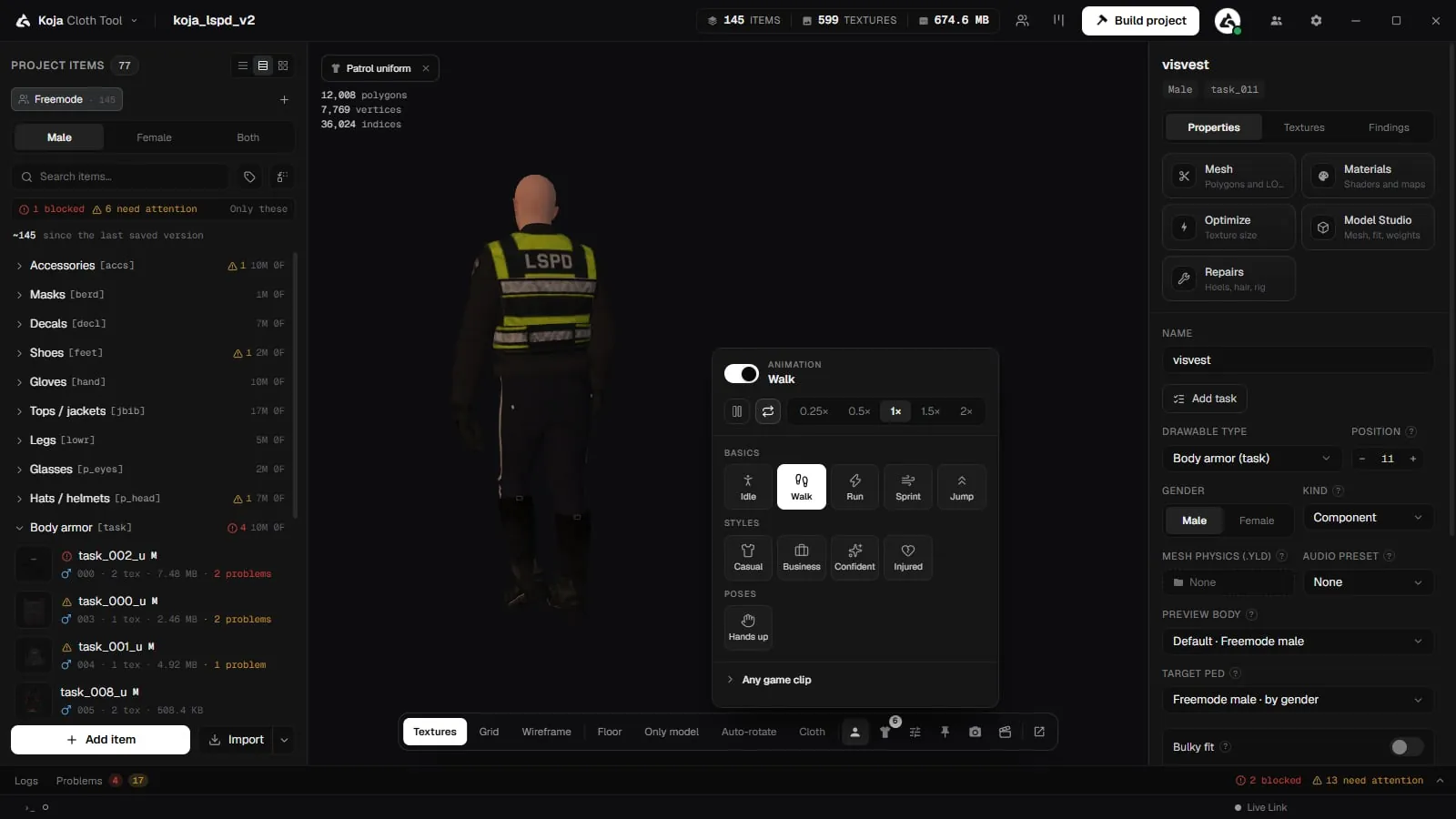
The transport bar
Pinned to the top of the panel, so it never scrolls away under a long list:
- Enable animation turns playback on or off, and the bar names what is playing (or Off).
- Play / Pause.
- The loop button: Looping — click to play once or Playing once — click to loop.
- Speed: 0.25, 0.5, 1, 1.5 or 2 times normal speed, so you can slow a walk down to catch the frame where a hem clips through.
Built-in moves
Below the bar, the moves are icon tiles on three shelves:
| Shelf | Moves |
|---|---|
| Basics | Idle, Walk, Run, Sprint, Jump |
| Styles | Casual, Business, Confident, Injured |
| Poses | Hands up, Yoga |
Click a tile to play it. The moves are free.
Any game clip
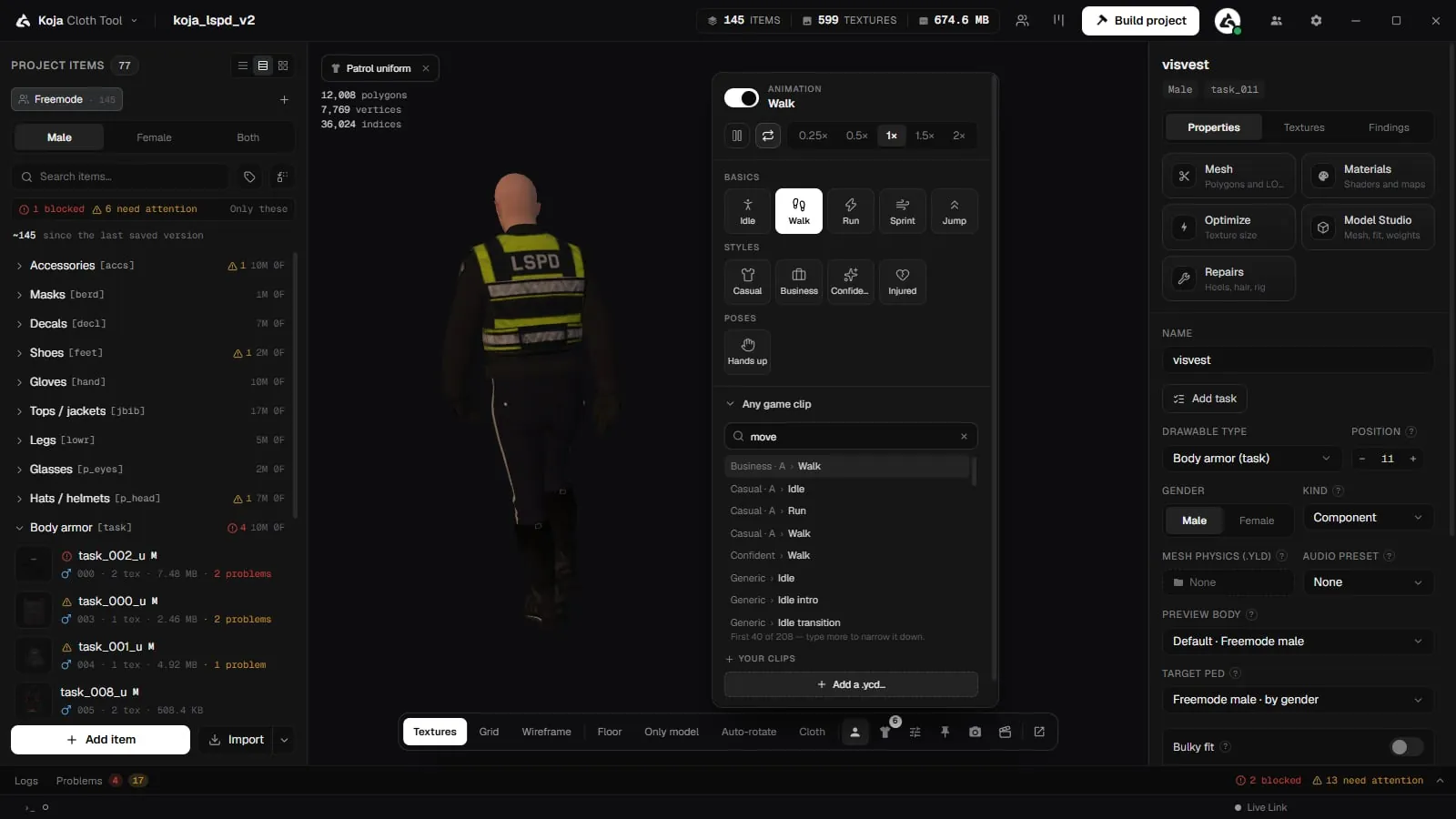
Any game clip, marked Premium, is the advanced path. It is folded away by default, and the panel remembers whether you left it open. Inside:
- Search every game clip looks through every clip in the game's own dictionaries, by the name the game knows it by (for example
business). A long result shows the first matches; type more to narrow it down. - Recent lists the clips you played lately.
- Your clips lists clip dictionaries you added yourself. Add a .ycd… adds one; it stays in the list between runs, and its row's button removes it.
The foot of the panel counts the moves and clips found in your game.
Library peds and props
- On a Ped Library ped, animations play on the ped's own skeleton. New in 2.0.8.
- Props stay on the head or wrist in the animated preview, even before the base ped is extracted. New in 2.0.8.
The Animation Creator
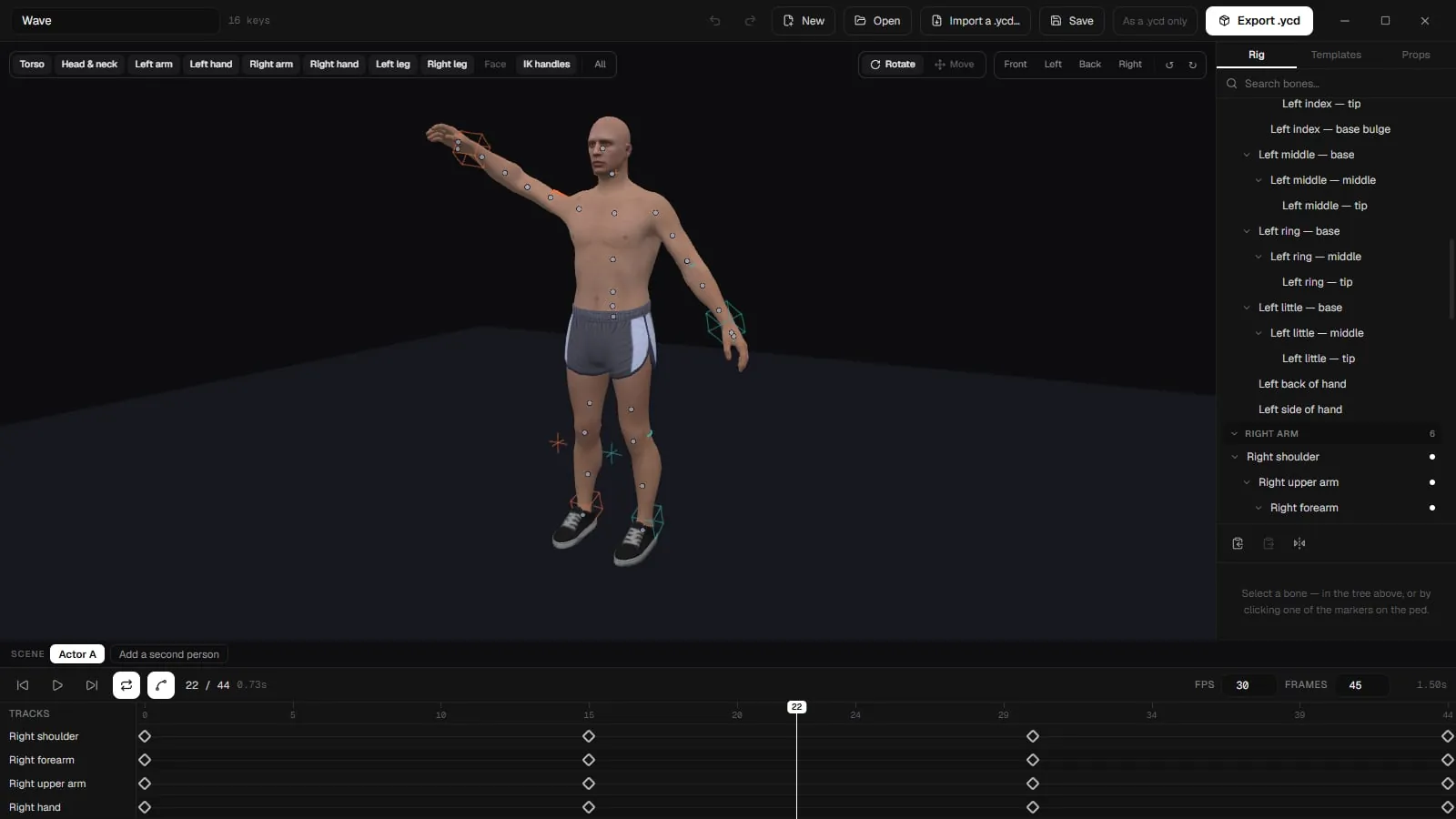
Pose a ped frame by frame and export a .ycd. Open it from the app menu — Animations….
Starting
| Start | What you get |
|---|---|
| New — male rig / New — female rig | An empty timeline on the bind pose. |
| Import a .ycd | Edit a clip the game already plays. |
| Open an animation | A .kctanim you saved earlier. |
| Start from a template | A pose or a whole clip from the library. |
| Recovered | Sessions that were never saved. The app kept a copy — open one and carry on. |
Only one animation is open at a time. If the creator is already working on something else, finish there first.
Posing
Two tools, and they are the whole rig:
- Rotate (
R) turns the grabbed bone. Hold Shift to snap to 5°. Hold Alt to turn a bone without dragging the rest of the limb with it. - Move (
G) pulls an arm or a leg's end through IK — you drag the hand, and the elbow and shoulder follow.
The camera behaves exactly as it does everywhere else in the app, so orbiting to check a pose costs you nothing.
The gizmo axes read Pitch · X, Yaw · Y, Roll · Z.
Controller layers
The rig is grouped into layers so you are not fighting a hundred controls at once: Torso, Head & neck, Left/Right arm, Left/Right hand, Left/Right leg, Face, and IK handles.
Click a layer chip to show or hide it. Alt-click shows only that one.
The timeline
Pick a bone, rotate it, and key it at the current frame. A bone with no keyframes stays at the bind pose.
- Frames and FPS set the clip's length and rate.
- Smooth new keys eases in and out as you go; Smooth every key in the clip and Constant speed on every key apply to the whole thing.
- Per-key easing: Linear, Ease in, Ease out, Ease in-out.
- Loop plays it round.
- Right-click a key to delete it, copy a pose to another frame, or clear every key on a bone.
Templates
The library ships Gestures, Two people, Showing a garment, and whatever you save under Saved by you.
A template is either This pose or the Whole clip. Stamp puts a saved pose on the current frame; Start from this begins a new animation from it. Templates that ship with the app cannot be deleted.
Props
Search Anything in the game to pull an object out of your GTA V files — Bags & boxes, Drinks, Flowers & plants, Food, Money, Phones & tech, Smoking, Tools, Weapons. You can also use the ped's own prop slots (hats, glasses, watches), the prop items in the open project, or Add your own model… as a .ydd.
Place it with X / Y / Z and Pitch / Yaw / Roll, and pick which slot it is worn on.
Two actors
Add a second person turns the timeline into a Scene with Actor A and Actor B, and Where they stand places them relative to each other. Export writes a clip per actor.
Exporting
Export .ycd bakes the clip at 30 fps. Two forms:
- As a .ycd only — the clip dictionary on its own.
- As a FiveM resource — a ready-to-drop resource folder around it.
Before it writes, the tool tells you what is incomplete rather than shipping it quietly:
| Warning | What it means |
|---|---|
| N of M bones have no keyframes | They stay at the bind pose. Usually fine, sometimes not what you meant. |
| N bones have a track but no keyframes | An empty track. Same result, and worth clearing. |
| N keyframed bones are not in this ped's skeleton | The game has nothing to apply them to — they do nothing in-game. |
| Nothing is keyframed yet | There is no animation to export. |
Importing a clip that animates fingers, face or cloth keeps those tracks even though the posable rig does not show them, so a round trip does not quietly throw them away.
If you open an animation posed on a different ped than the one loaded, the tool says so. It still opens.
Related pages
- 3D Preview — the viewport the moves play in.
- Cloth simulation — a
.yldgarment simulates while the animation runs, which is the real test of a coat. - Ped Library — preview on other peds and their own skeletons.
- Appearance Menu — the standing pose when nothing is playing.
- Scene Creator