

Items and Textures
Items
An item is one garment or prop. Select it in the item list and its editor opens on the right, with three tabs: Properties, Textures and Findings (what is wrong with the item, with a fix — see Validation).
| Option | What it does |
|---|---|
| Cloth type | Component (body part) or Prop (hat, glasses, ears, watches…). |
| Drawable type / slot | The body slot the item fills — Top (jbib), Legs (lowr), Undershirt (accs), Feet, Hands, Mask (berd), Hair, Teeth (teef), Hat (p_head) and so on. |
| Number | The drawable number the item takes within that slot. |
| Gender | Male or Female. Items are per-gender; right-click an item → Create Copy for other Gender to duplicate across. |
| Name | A friendly label for you — not used by the game. |
| First-person model | An optional alternate model used in first-person view. |
| Audio preset | The sound the game plays as the item moves, picked from every clothing sound GTA V defines. See Audio Presets. |
| Footstep sound | Legs items only: the footstep sound the game plays while the trousers are worn. See Audio Presets. |
| Mesh physics | Cloth simulation data, where the garment provides it. Takes a .yld or a .yld.xml, which is converted for you. |
| Behaviour flags | e.g. armoured / lightly armoured, remove hat in vehicle (masks). |
| Hoodie hairs | Hair-alternation handling so hoods and hats don't clip hair. |
| Target ped | The ped the garment is built for: freemode, or a ped from the Ped Library (Premium). Items on a ped's tab in the item list are built for that ped. |
| Preview body | The body the 3D preview shows the item on. It lists the project's library peds. |
Texture variants
Each item can carry multiple texture variants — the colour / pattern options a player scrolls through in-game. They show as rows on the Textures tab, lettered a, b, c… in order. To move one, click the number at the start of its row and pick a new position; the letters follow the order.
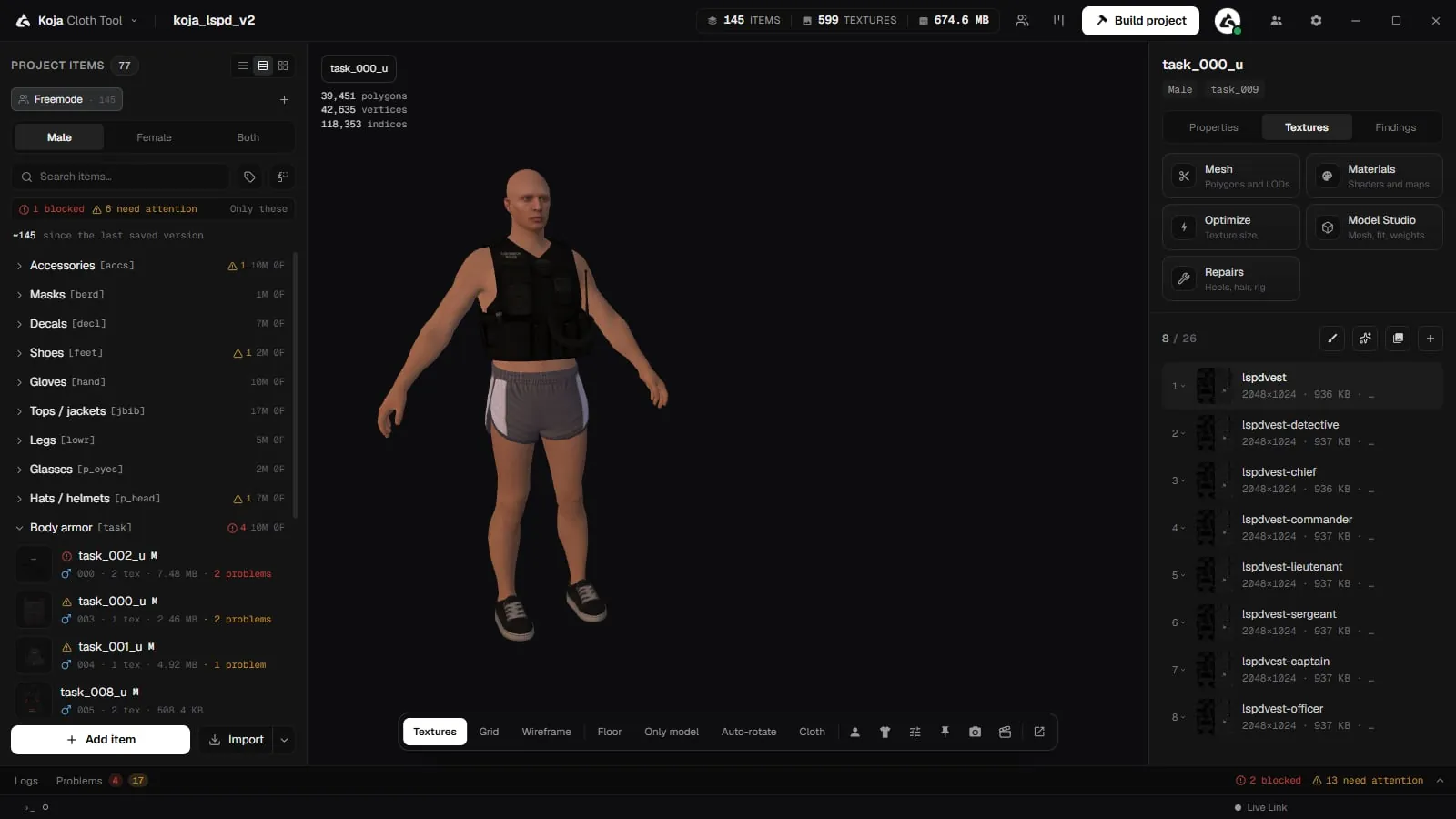
Adding and replacing textures
One + button (Add texture variant from a file) does both jobs. Pick one file or twenty (.ytd, .dds, .png or .jpg):
- Files named after a texture the item already has replace it.
- The rest are added as new variants.
- When something would be replaced, the Add and replace textures dialog shows what will be replaced and what will be added before anything changes. Untick anything you want to leave out. When nothing matches, the files are simply added.
- The whole pick is one step in the undo history: Ctrl+Z takes it all back.
Loose .png and .dds files
You can keep a texture as a loose .png or .dds. When you build, it is converted to a real .ytd, because the game binds textures by name inside a .ytd, not by file. Every DDS format is read. The Ped Creator also reads GIF, BMP and AVIF textures.
Texture letters on import
Imported letters are kept when they run in order. If there are gaps (for example a, b, d), the textures are re-lettered so there are none, and the import tells you which ones moved.
The texture menu
Right-click a texture row for:
- View texture and Show on the ped
- Edit in texture creator… (Premium, see Texture Creator)
- Edit in → Photoshop, GIMP, Substance 3D Painter or Other app… (Premium, see Live Link)
- Rename, Replace image…, Remove variant
- Optimize texture… (Premium, see Texture Optimization)
- Show in Windows Explorer, Export all as DDS…, Export all as PNG…
Embedded textures
Some .ydd models carry textures baked inside the model (typically the normal and specular maps) rather than in an external .ytd.
- Click Embedded on the Textures tab, or right-click an item → View embedded textures…, to open the viewer. It decodes and shows each embedded texture with its size, format and mip count.
- The viewer is editable: Optimize (single / all), Replace, Rename, Export, and Edit in another app through Live Link (Premium).
Related pages
- Audio Presets — the sound each garment makes in game
- Importing — every way to bring garments and textures in
- Live Link — edit textures in Photoshop, GIMP, Substance 3D Painter or Blender
- 3D Preview
- Building
- Texture Optimization
- Interface
- About the Tool — back to the section overview