
Mesh Optimizer
Imported clothing is often much heavier than it needs to be: duplicate vertices, broken geometry and no LODs. The Mesh Optimizer cleans a model up, can cut its triangle count, and can build the distance versions the game swaps to. Nothing is written until you press Apply, and the original can always be restored.
Opening it
- In the item panel, click the Mesh tool tile (Polygons and LODs).
- Right-click an item and choose Optimize mesh….
- Select several items, right-click and choose Optimize meshes in the selected items…. The same settings apply to every item, and the button reads Apply to n items.
Easy: pick a preset
| Preset | What it does |
|---|---|
| Tidy up | Removes broken and duplicate geometry only. Nothing about how the garment looks changes. |
| Add distance versions | Tidies up and adds the Med, Low and VeryLow levels the game uses when the ped is far away. The full-detail model is untouched, so the file gets bigger, not smaller. |
| Lighter model | Tidies up, adds the distance versions, and drops 30 % of the triangles. This is the only preset that changes the garment's shape, so compare the wireframes before applying and check it in the viewport afterwards. |
Advanced: every setting
Switch to Advanced to set each step yourself. Each setting has a ? beside it.
- Clean up: removes degenerate triangles and vertices nothing uses. Always safe.
- Weld vertices: merges vertices that sit on top of each other, within a Distance. Two vertices are only merged when their position, normal, UV and bone weights all agree, so hard edges, UV seams and skinning survive. Keep edges sharper than (25° by default) sets the angle that stays a hard edge.
- Decimate: off by default. It collapses triangles while keeping the silhouette, down to the share you set under Keep (5–100 % of triangles, 50 % by default). This is the step that changes how the garment looks.
- Generate LODs: builds the Med, Low and VeryLow levels from the result.
Before and after
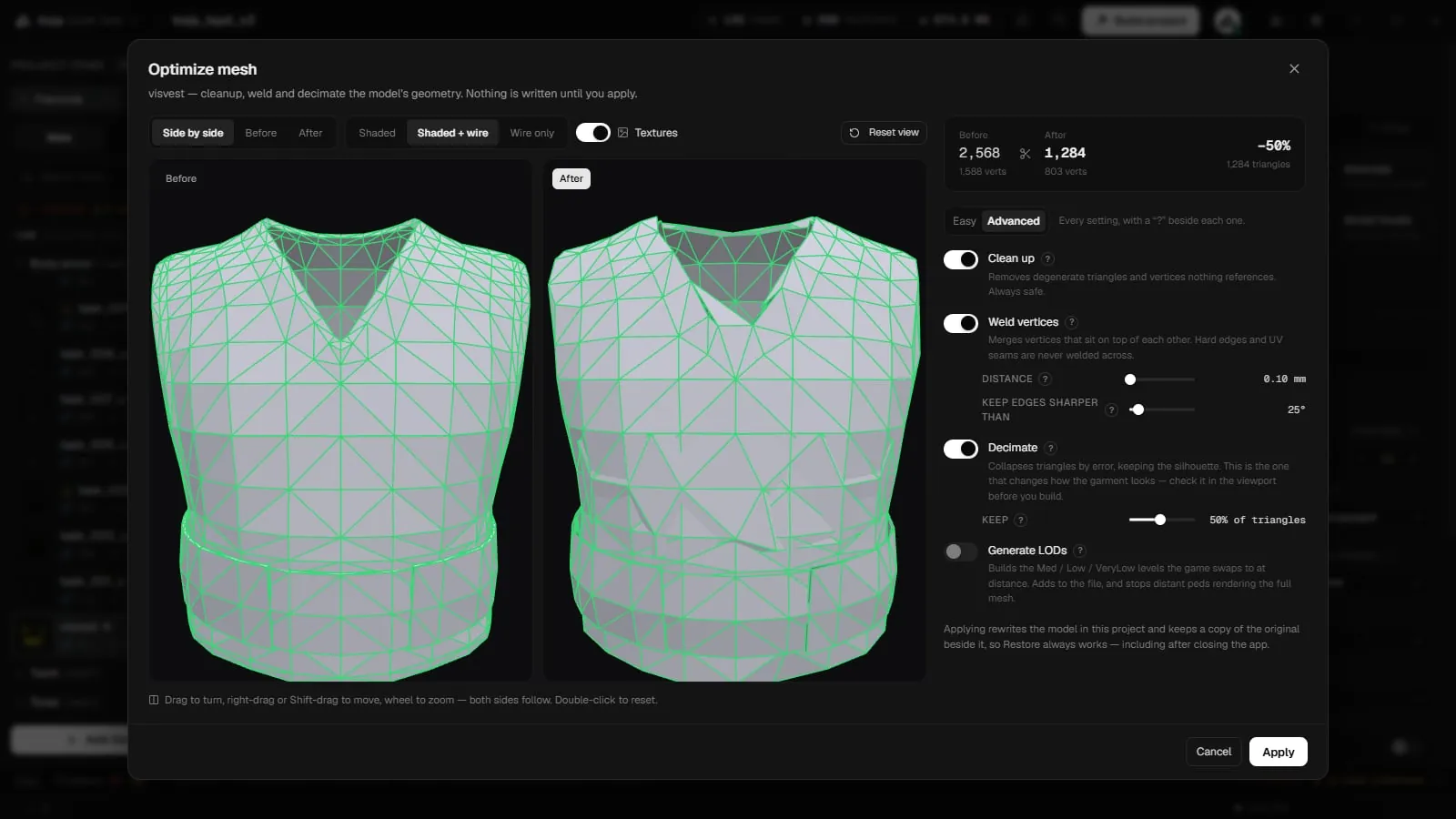
New in 2.0.8, the window shows a large before/after preview of the model:
- Side by side shows the model before and after, or pick Before or After on its own. Choose Shaded, Shaded + wire or Wire only, and turn on Textures to see the garment's texture.
- Drag to turn, right-drag or Shift-drag to move, and use the wheel to zoom. Both sides follow. Double-click or Reset view goes back to the front view.
- The counters show vertices and triangles before and after, and how many triangles are removed.
Change the settings until the trade-off looks right, then press Apply.
Applying and restoring
- Apply rewrites the model in this project. The live preview and the next build use it straight away. The window then shows the size written on disk.
- Before the first apply, a copy of the original is kept beside the model as an
.optbakfile. Restore original puts it back at any time, even after closing the app. - An optimise can also be undone with Ctrl+Z.
Related pages
- Model Studio: edit the mesh by hand, including merge by distance on a selection.
- Texture Optimization: shrink the textures as well.
- Building: what goes into the pack.
- Limits: what the game tolerates.