
Texture Creator
Sometimes you don't want to leave the tool for Photoshop. You just want to recolour a jacket, put a logo on a hoodie or fix a seam. The Texture Creator paints a texture with layers, directly on the 3D garment or on the flat UV sheet, and the model updates as you paint.
Opening it
- In the item's Textures panel, click Create to paint a new texture for the item.
- Right-click a texture variant and choose Edit in texture creator… to paint over it.
- Right-click an item and choose Create texture….
- In the Tattoo Creator, to edit a tattoo's picture.
The creator opens in its own window. If it is already open, the app tells you, and Bring it forward brings it to the front.
Start a new painting
A new texture asks two things first. Neither can be changed later without starting again.
- Size: the texture's own size, or another size.
- Start from: The item's current texture (paint over what the garment already wears), Transparent (an empty sheet) or A colour (the first layer filled with one flat colour).
You can also pick a painting you saved earlier under Or open a painting you saved, or use Open a file…. Then press Start painting.
The menu bar
New in 2.0.9. Along the top of the window, File, Edit, Layer, Select, View and Help list every action with its keyboard shortcut, the way GIMP and Photoshop do. If you are not sure where something is, look there first.
| Menu | What is in it |
|---|---|
| File | Place picture…, Open document…, Save document, Save document as…, Done: apply to the garment, Discard changes |
| Edit | Undo, Redo, Paste picture as layer, Free transform, Fill selection with colour, Clear selection, Swap colours, Default colours |
| Layer | New paint layer, New fill layer, New text layer, Place picture…, duplicate, merge down, rasterise and delete the active layer |
| Select | All, Deselect, Inverse and the three selection tools |
| View | Model, UV and split view, Show UV wireframe / Hide UV wireframe, fit view, actual size, the asset shelf, and history or properties |
| Help | The keyboard shortcut reference |
Views
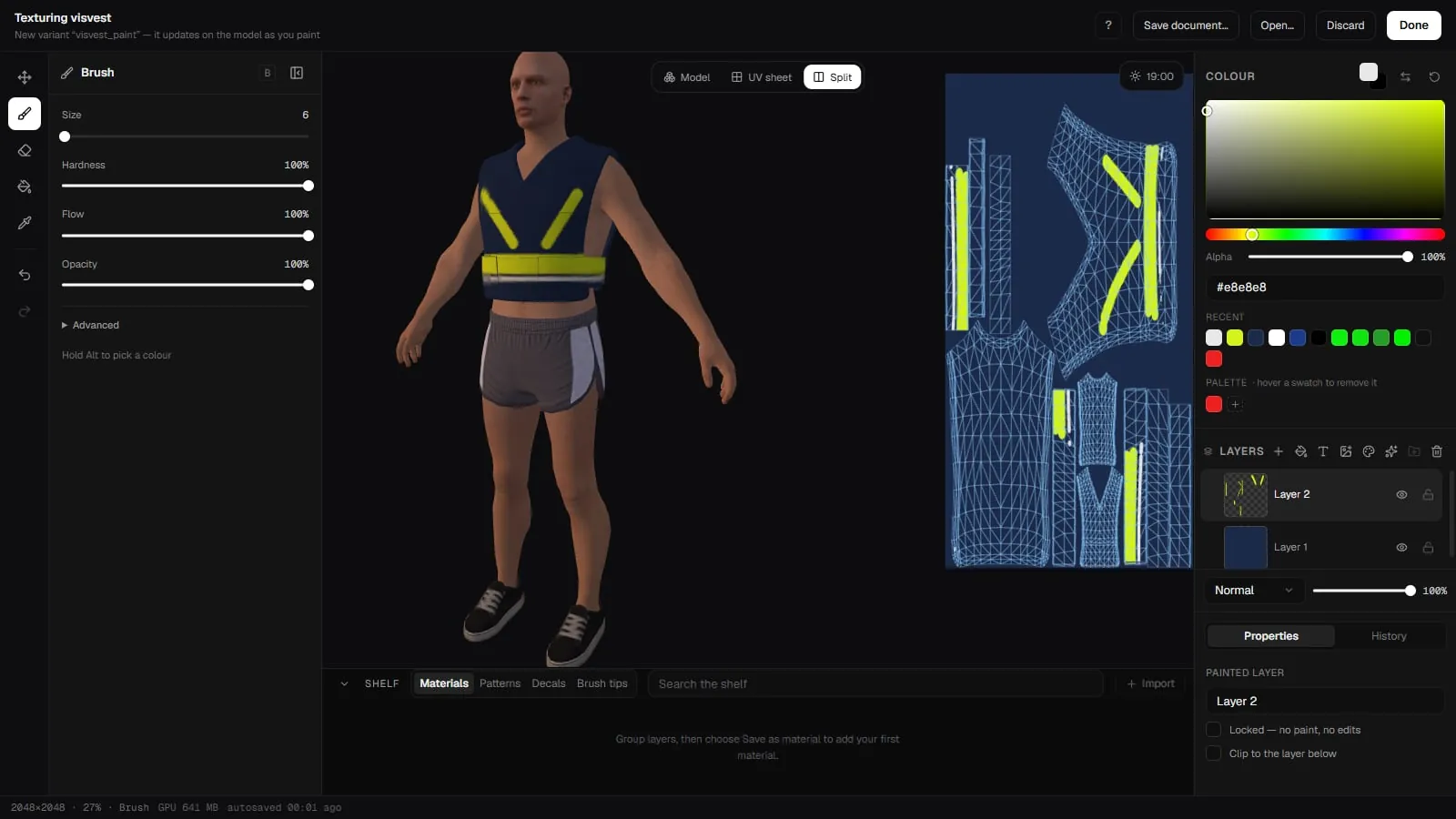
| View | Key | What you paint on |
|---|---|---|
| Model | 1 | The garment in 3D |
| UV sheet | 2 | The flat texture |
| Split | 3 | Both at once |
Ctrl+0 fits the view and Ctrl+1 shows actual size. Hold Space to pan.
On the UV sheet, the garment's UV wireframe is drawn over the texture. It fades as you zoom out so it does not hide the picture. Ctrl+' hides or shows it.
Pictures from outside
- Ctrl+V pastes a picture from the clipboard as a new picture layer, for example a logo you copied in your browser or a screenshot. Edit → Paste picture as layer does the same.
- Drag a picture in from Explorer and it lands where you drop it, on the UV sheet or on the model.
- Place picture… in the File menu picks a
.png,.jpg,.ddsor.ytdfrom disk.
Each one becomes its own layer, which you can then move, resize and rotate with free transform.
Tools
| Tool | Key | What it does |
|---|---|---|
| Move | V | Moves fill, picture and text layers on the UV sheet. Shift keeps it to one axis, and the arrow keys nudge (Shift for 10 px). Painted layers cannot be moved yet. |
| Rectangle / ellipse select | M | Draws a rectangular or elliptical selection on the UV sheet. See Selections. |
| Lasso | L | Draws a freehand selection, or one made of straight lines. |
| Magic wand | W | Selects everything of a similar colour. |
| Brush | B | Paints in the brush colour. Hold Alt to pick a colour. |
| Eraser | E | Rubs paint out. |
| Fill | G | Fills The whole layer, The UV island, The garment piece or the Matching colour (with Tolerance, Joined up and Sample: Everything visible or This layer only). It fills with a Colour or a Material. Shift-click fills the highlighted UV island. |
| Eyedropper | I | Picks a colour off the garment. Shift-click also saves it to the palette. |
The brush settings are Size, Hardness, Flow and Opacity. Under Advanced you also get:
- Spacing and Smoothing
- Symmetry: Off, Mirror on the body or Mirror on the sheet
- Keep inside: Nothing, The UV island or The garment piece. This stops paint bleeding across seams.
[ and ] change the brush size. 4–9 set the opacity to 40–90 % and 0 sets 100 %. X swaps the two colours and Shift+D resets them to white and black.
Selections
New in 2.0.9. A selection limits where you paint. While something is selected, the brush, eraser and fill only change the pixels inside it, both on the UV sheet and on the model. The selection is shown with a moving dotted outline ("marching ants").
Selections are drawn on the UV sheet. Switch to the UV sheet or the split view (2 or 3) to make one. Painting on the model then stays inside it.
| Tool | How to use it |
|---|---|
| Rectangle / ellipse select (M) | Drag on the UV sheet. Choose Rectangle or Ellipse under Shape. A single click deselects. |
| Lasso (L) | Draw around what you want, and let go to close the shape. With Straight lines (click corners), click corner by corner, then click the first corner, double-click or press Enter to close it. Esc cancels. |
| Magic wand (W) | Click a colour to select everything like it. Tolerance sets how close a colour has to be. Contiguous keeps the selection to the area joined to where you clicked. Sample reads All layers or the Current layer. |
Adding to a selection
Every selection tool has four modes, as buttons in its tool bar or by holding a key while you draw:
| Mode | Key | What it does |
|---|---|---|
| New | Replaces the selection. | |
| Add | Shift | Adds to the selection. |
| Subtract | Alt | Removes from the selection. |
| Intersect | Shift+Alt | Keeps only the overlap. |
Working with a selection
| Action | Shortcut |
|---|---|
| Select the whole sheet (All) | Ctrl+A |
| Deselect | Ctrl+D |
| Invert the selection (Inverse) | Ctrl+Shift+I |
| Clear what is selected on the current layer | Delete |
| Fill the selection with the brush colour | Alt+Backspace |
When nothing is selected, Delete deletes the current layer, as before.
Free transform
New in 2.0.9. Ctrl+T (or Edit → Free transform) puts a frame around the selected picture or text layer on the UV sheet. Select the layer in Layers first.
| Drag | What it does |
|---|---|
| A corner | Resizes and keeps the ratio. Shift frees the ratio, Alt resizes from the centre. |
| An edge | Stretches one side. Alt stretches from the centre. |
| Just outside a corner | Rotates. Shift snaps to 15°. |
| Inside the frame | Moves it. |
Press Enter when you are done, or Esc to put it back as it was. Each transform is one step in the history, so Ctrl+Z undoes it in one go.
While a picture or text layer is selected, the tool bar also shows its X, Y, W, H and angle, so you can type exact values. Fill sheet scales the picture to cover the whole sheet, and Reset puts it back to its own size, unrotated.
Colour
The colour panel has a colour picker with hex entry, the colours you used Recently, and a Palette you can save colours to with + or with a Shift-click of the eyedropper. Your palette is also used by Make colourways.
Layers
Every painting is a stack of layers:
| Layer | What it is |
|---|---|
| Painted layer | Brush and eraser pixels. Add layer. |
| Fill layer | A solid colour, a linear or radial gradient, or a material, which you can still recolour and resize. Add a fill or gradient layer. |
| Text layer | Text with a font, bold, italic, size, line height, tracking, colour and an optional outline. Add a text layer. |
| Picture layer | A .png, .jpg, .dds or .ytd placed on the garment. Place a picture, paste one with Ctrl+V, or drag one in. |
| Recolour layer | Changes one colour on everything below it, keeping the shading. See Recolour layer. |
| Group | Holds other layers. Group these layers (Ctrl+G), Ungroup (Ctrl+Shift+G). |
Each layer has a blend mode (19 of them, from Normal and Multiply to Hue and Luminosity), an opacity, a lock and a visibility eye. Alt-click the eye to show a layer on its own. Right-click a layer to Rename, Duplicate (Ctrl+J), Merge down (Ctrl+E), Rasterise (Ctrl+Shift+R) or Clip to the layer below (Ctrl+Alt+G). A clipped layer only shows where the layer below has pixels. Merge to a layer turns a whole group into one layer and can be undone. , and . move to the previous and next layer.
Add a worn or dirty look adds Wear on the seams (rubs colour off ridges and seams) or Dirt in the folds (settles grime into creases). Both are shaped by the garment's own geometry.
Masks
Add a mask to any layer to hide parts of it. Click the mask to paint it: white shows the layer and black hides it. The mask menu can Invert the mask, Fill the mask white or Fill the mask black, Clear the painted pixels, Switch the mask off or Remove the mask. Press \ to see a mask on its own.
A mask can also be driven by the model itself. Under Made of, choose:
- Brushed pixels only
- Shadow in the folds: the dark under a collar and inside a cuff
- Edges and creases: wear along seams and hems, or dirt in the creases
- Which way it faces: sun-fade on top, dust on the shoulders
- The island you filled or The part you filled
- Noise: breaks up the others so the result looks less machine-made
Recolour layer
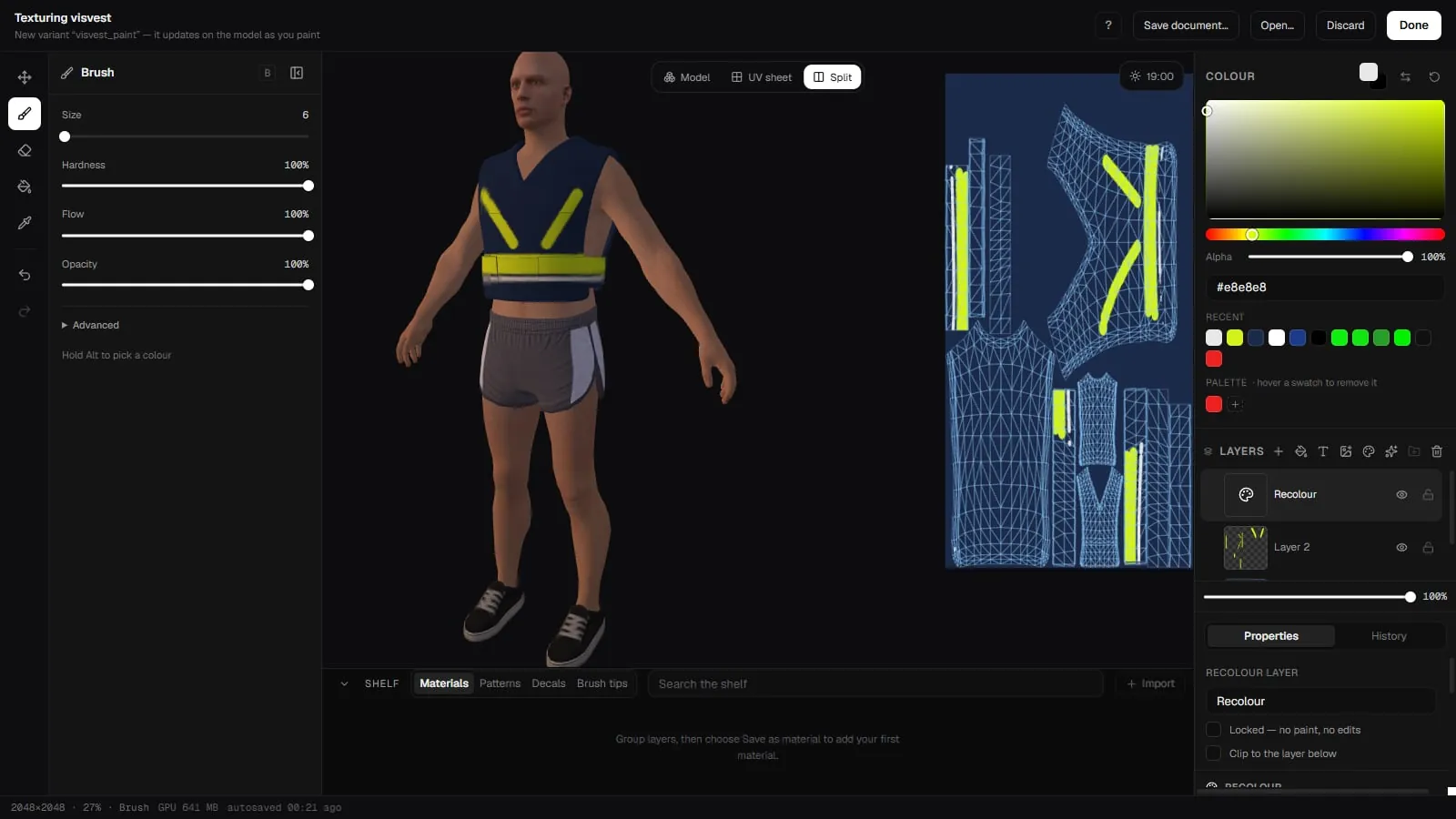
New in 2.0.8. A Recolour layer changes one colour on the garment and keeps everything else: the shading, the seams, the dirt. It changes every layer under it. Inside a group, it only changes that group's layers.
-
Add it
Click Add a recolour layer in the layers panel. -
Choose what to recolour
Under What to recolour, choose:- This colour: set From (the colour on the garment to change) and To (the colour it becomes). Pick from garment lets you click either colour straight off the model.
- Everything: recolours everything coloured to the To colour. Blacks, whites and greys stay as they are.
-
Tune it
- Tolerance and Feather: how close a colour must be to From, and how softly the edge blends. These are not used with Everything.
- Hue: Shift keeps a print's colours apart. Set turns them all into the target's hue. Everything, and a grey source colour, always use Set.
- Match lightness: brings the result's lightness towards the target colour.
- Colour strength: how saturated the result is.
- Advanced › Grey floor: colours greyer than this are left alone by Everything, so blacks, whites, stitching and shadows keep their colour.
To limit a recolour to one part of the garment, add a mask to it. Merge down bakes the recolour into the painted layer below.
Make colourways
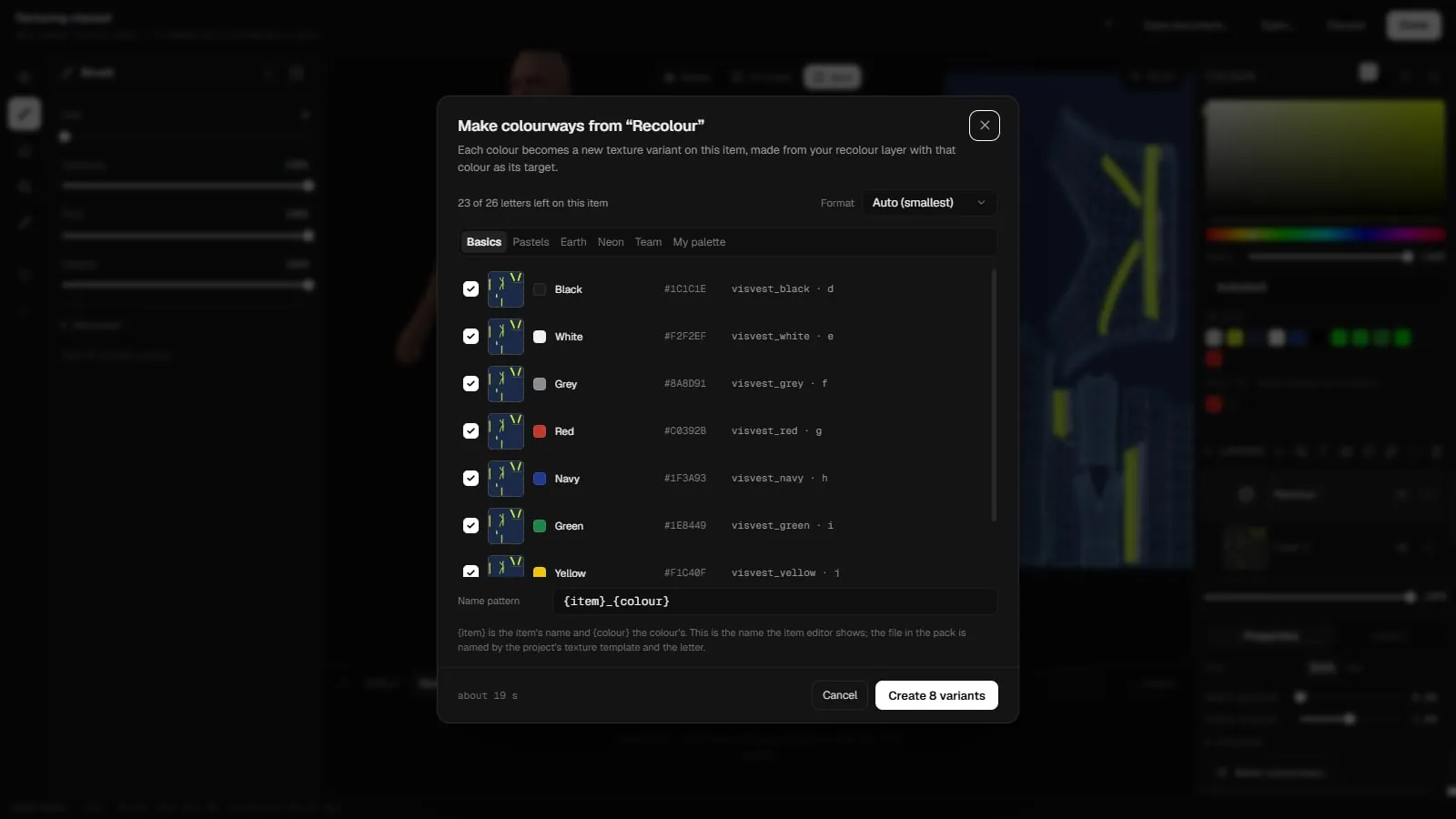
New in 2.0.8. Make colourways… turns one recolour layer into a whole batch of texture variants. Open it from the Recolour layer's panel, or from the Done menu.
-
Pick the colours
Choose a palette (Basics, Pastels, Earth, Neon, Team or My palette) and tick the colours you want. Each colour becomes a new texture variant, made from your recolour layer with that colour as its target. -
Name them
The Name pattern uses{item}for the item's name and{colour}for the colour's. This is the name the item editor shows. The file in the pack is named by the project's texture template and letter. -
Pick the format
Format: Auto (smallest), BC1, BC3 or BC7 (very slow). -
Create
Press Create n variants. The variants are made one at a time, with progress for each. The dialog shows an estimate of how long it will take.
An item holds at most 26 texture variants (letters a–z), and the dialog shows how many letters are left. Colours that would go past the 26th are disabled.
Shelf and materials
The shelf along the bottom (Ctrl+Alt+S) holds your own assets in four tabs: Materials, Patterns, Decals and Brush tips. Import a picture once, or drag one in from Explorer, and it is there in every project. Drag it onto the model, the UV sheet or a layer. You can Search the shelf.
To keep a stack of layers as a material, group them and choose Save as material…. The whole group, with its layers, masks and fills, lands on the Materials tab. Drop it on another garment and it comes back editable, in a single undo.
Saving and finishing
- Save document… (Ctrl+S, or Ctrl+Shift+S for save as) writes a re-openable
.kctpaintfile with all its layers. Open… (Ctrl+O) opens one. - Done writes the texture to the item. For a new texture, it keeps it as a new variant. When you are editing an existing variant, the Done menu offers Keep as a new variant, Replace variant "name" or Make colourways….
- Discard throws away everything since the last save.
- Undo (Ctrl+Z) and Redo (Ctrl+Shift+Z or Ctrl+Y). Ctrl+H switches between the history and properties panels. The history panel lets you step back.
- Your work is autosaved. If the creator closes without saving, it offers to Restore the work next time, or you can Discard it.
Press F1 in the creator, or open the Help menu, for the full list of keyboard shortcuts.
Related pages
- Items and Textures: texture variants and the 26-letter limit.
- Texture Optimization: shrink what you painted before you build.
- Material Editor: normal and spec maps made from your painted diffuse.
- Tattoo Creator: edit tattoo pictures in the same creator.