
Interface
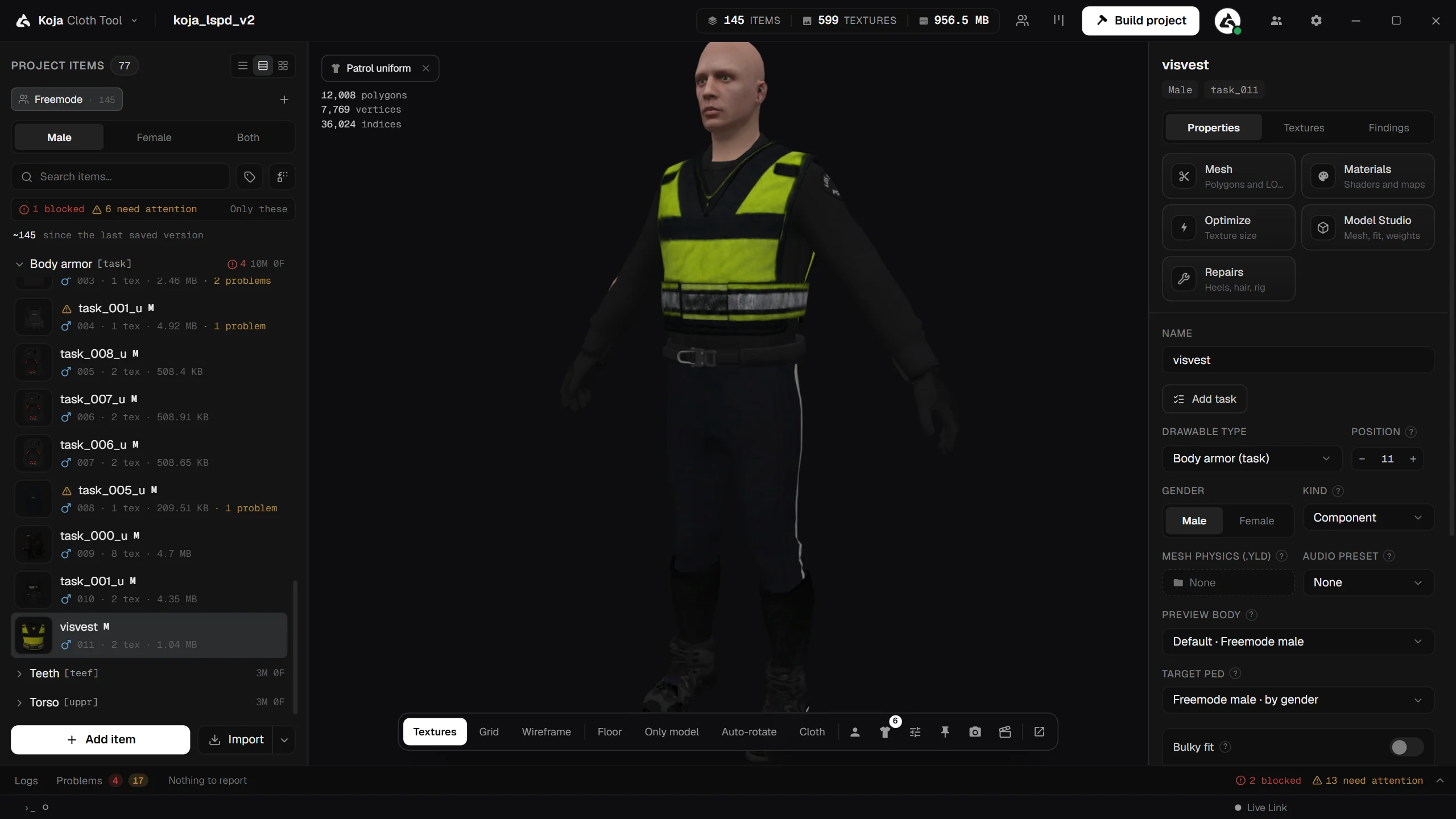
With a project open, the main window has a top bar, three panels side by side, and a panel along the bottom:
- left: the item list;
- centre: the 3D preview (or the task board);
- right: the item editor;
- bottom: Logs and Problems.
The Home screen
Without a project open you land on Home. From here you can:
- start a New project;
- Continue the project you had open last, or pick one from All projects (use Search projects… to find one);
- Import a pack or project: a FiveM resource (folder or
.zip), a KOJA package (.kct), a Durty Cloth Tool project (.dctproj) or a GTA V add-on pack (dlc.rpf). See Importing.
Each recent project can be pinned to the top, renamed, shown in Explorer, removed from the list or deleted from disk. Deleting sends the whole project folder to the Recycle Bin.
On a PC with no projects yet, Home first asks you to Sign in with Discord, which sets up your account and free build quota.
The top bar
- The KOJA logo opens the app menu: About KOJA Cloth Tool, Check for updates, Close project (the way back to Home), Open project folder, Open logs folder, Report a problem, Optimize project textures…, Export project as GLB…, Export package (.kct)… and the creator windows such as Animations…, Scenes… and Tattoos….
- The project name opens Project settings. Beside it are the project's item count, texture count and size.
- Ped library opens the project's Ped Library (Premium).
- Board swaps the 3D preview for the task board.
- Build project opens the build window. See Building.
- Team opens Team Collaboration.
- Settings opens the app Settings.
- Your name (once signed in) opens your account menu: your profile card with your status and a copyable ID, and your friends.
Left: the item list
Your project's garments, grouped by slot.
- Male, Female and Both at the top filter the list by gender.
- Search items… narrows the list.
- The Shop metadata button edits shop fields across items (Shop Metadata, Premium). The Mass options button renames or reorders many items at once (Mass Edit).
- Right-click an item for its actions: rename, replace the model, edit materials, create a texture, optimise, Open in an external editor, duplicate, Create Copy for other Gender, Move to ped and Copy to ped, show in Explorer, the Export submenu, Add task…, remove and more.
- Select several items to act on all of them. Right-click the selection for bulk actions such as duplicating, copying to the other gender, moving or copying to a ped, optimising, exporting, adding a task or removing.
Ped tabs
New in 2.0.8, with Premium. Above the list is a row of tabs, one per ped the project makes clothes for:
- Freemode first: clothes for the freemode male and female peds.
- Then, sorted by name: each Ped Library ped that has clothes, each Ped Creator or resource ped, and any game ped you pinned with Make clothes for this ped.
- Each tab shows its ped's picture and how many items it has. + opens the Ped Library to add a ped. When the tabs do not fit, a menu at the end lists them all.
A ped's tab shows only the clothes made for that ped:
- A header names the ped's gender and source, with Build ped pack… (see Build Ped Pack). A pinned game ped with no clothes can be hidden again with Hide this ped's tab.
- The ped's own drawables are listed read-only in each slot, folded under Ped's own (N).
- Each of your garments shows #N in game: the drawable number it will have on that ped, after the ped's own drawables. If the ped is not laid out on this PC yet, Lay out fills these in.
- Importing, adding or dropping files on a ped's tab makes the new items for that ped, with its gender. There is no gender switch on a ped's tab: a ped has one gender.
- Drag items onto a tab to move them to that ped. Hold Ctrl while dropping to copy them instead. Move to ped and Copy to ped in the right-click menu do the same.
- A ped's tab with nothing on it yet offers Import for ped, Add item, Fit a freemode item… and Build ped only….
Clothes cannot be moved onto a ped that cannot wear them, such as an animal; the list says why. The tab you were on is remembered per project, on your PC only. On the free plan the list shows no tabs and works as it did before.
Layouts
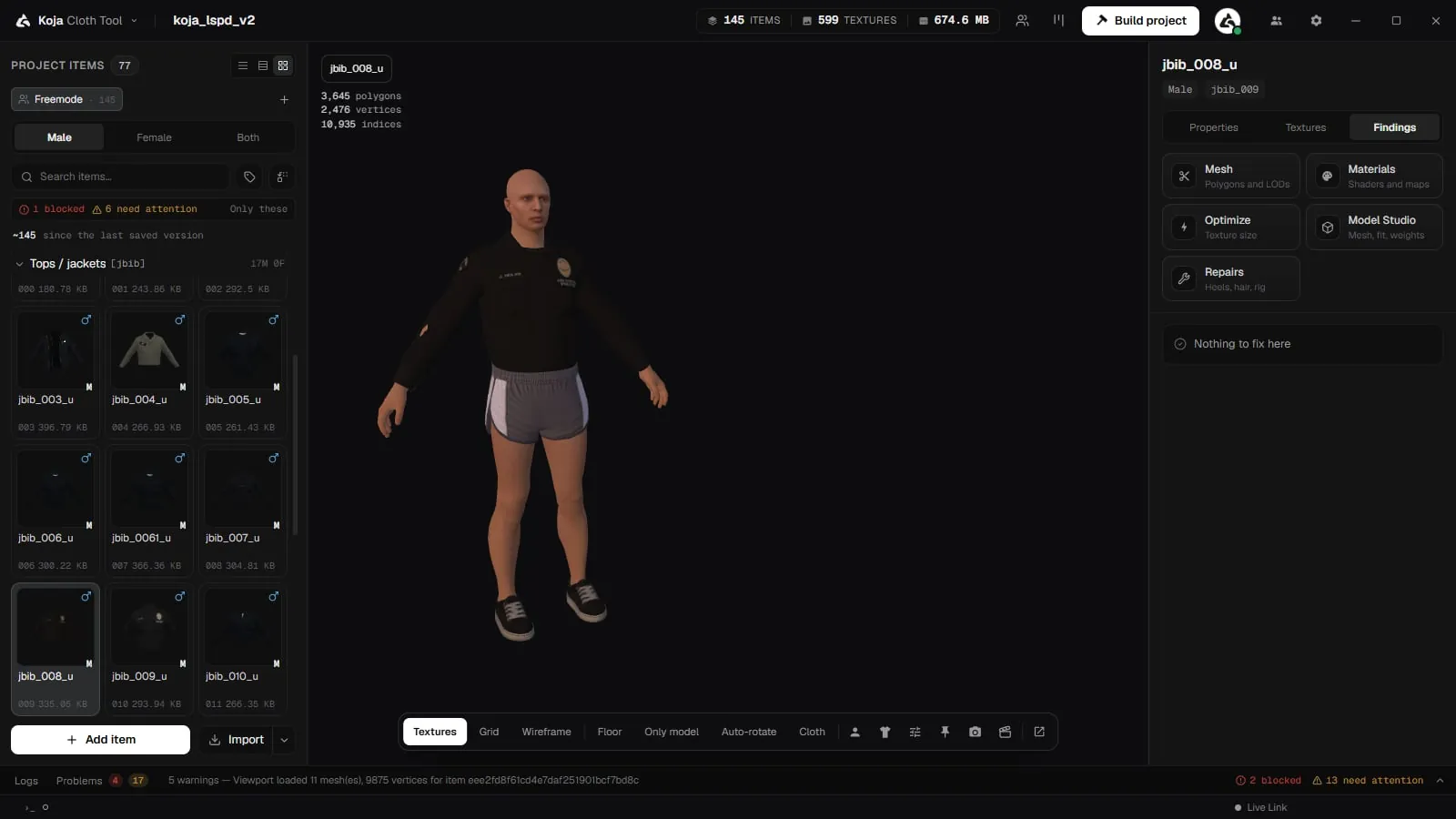
New in 2.0.8. The list has three layouts, switched from the list itself or in Settings > Item list:
| Layout | What it shows |
|---|---|
| Compact | A dense list. |
| With previews | A list with a textured picture of each model. |
| Grid | A grid of pictures. |
Pictures are drawn by the 3D view as you look at items, or all at once from the list, and are much faster to draw than before.
Problem icons
New in 2.0.8. An item with findings from the pre-build checks carries a problem icon:
- hover the icon for a card listing its problems;
- slot headers count the items with problems;
- the line above the list counts blocked items and items that need attention, and Only these filters the list to them.
Change marks
Each row is marked against your last saved version (see Team Collaboration):
| Mark | Meaning |
|---|---|
| A | Added since the last version. |
| M | Changed since the last version. |
| R | Renamed since the last version (hover to see the old name). |
Removed garments have no row to mark, so they are counted in the "since the last saved version" line above the list. Turn the marks off with Version history marks in Settings > Item list.
Centre: the 3D preview
A live render of your garment on a real freemode ped wearing your textures. Full details in 3D Preview.
New in 2.0.8: one Appearance button on the preview bar replaces the separate Outfit and Look buttons. It has three tabs: Ped, Outfit and Look. Options now holds only lighting and scene. See Appearance Menu. The animation button opens the Animations panel.
Right: the item editor
The selected item's settings, in three tabs:
- Properties: slot, drawable number, gender, flags, audio, cloth physics, hair handling and the item's other settings.
- Textures: the item's texture variants. See Items and Textures.
- Findings: what the checks found for this item, with fixes. See Validation.
Bottom: Logs and Problems
The live log and every finding in the pack, with counts on each tab. Ctrl+J shows or hides it and Ctrl+Shift+M jumps to Problems. Auto fix… in Problems fixes everything the tool can fix by itself in one go. See Logs and Problems.
Command palette
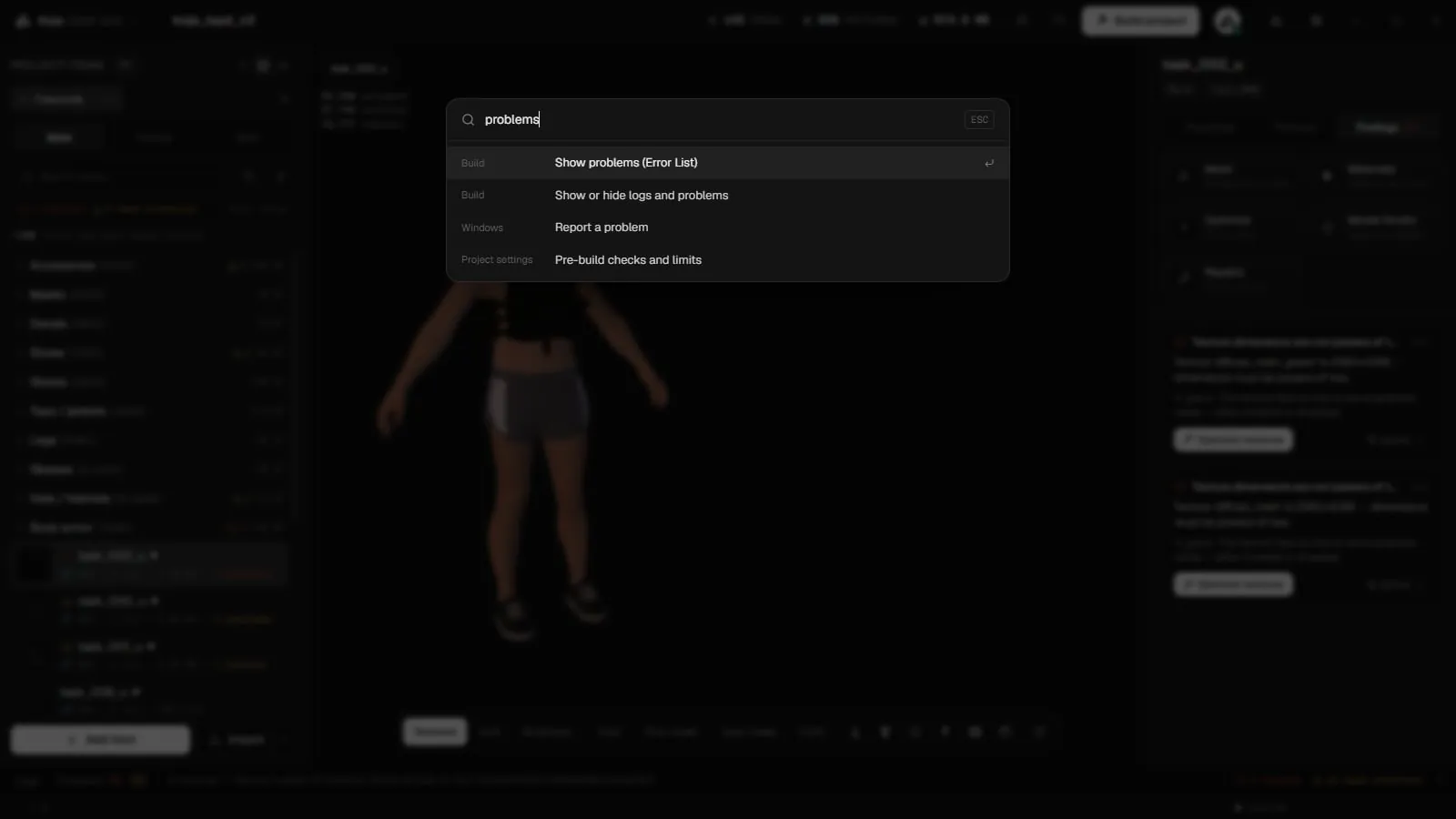
Press Ctrl+K to find any action, window or setting by name and run it. It covers project actions, building, Show problems (Error List), project settings, app settings pages, the creator windows and more.
Undo and saving
- Undo (
Ctrl+Z) covers every action in the app: renames, imports, deletes, optimising, a whole mass edit. OneCtrl+Zundoes one thing you did. - Every edit is written to the project file straight away.
Ctrl+S(Save project) flushes it and confirms, but there is nothing waiting to be saved.
Projects reopen where you left them
New in 2.0.8. When you open a project again, it comes back on the same item, texture, tab and expanded groups. This is remembered per project, on your PC only, and never shared with your team, so teammates never overwrite each other's place.
Keyboard shortcuts
| Action | Default |
|---|---|
| Find any command | Ctrl+K |
| New project | Ctrl+N |
| Open project | Ctrl+O |
| Save project | Ctrl+S |
| Build / package | Ctrl+B |
| Undo | Ctrl+Z |
| Open settings | Ctrl+, |
| Show or hide logs and problems | Ctrl+J |
| Show problems | Ctrl+Shift+M |
| Quit application | Ctrl+Q |
All of them can be changed in Settings > Keyboard Shortcuts.
In the ped tabs, the arrow keys move between tabs and Home / End jump to the first or last.