

Capture panel
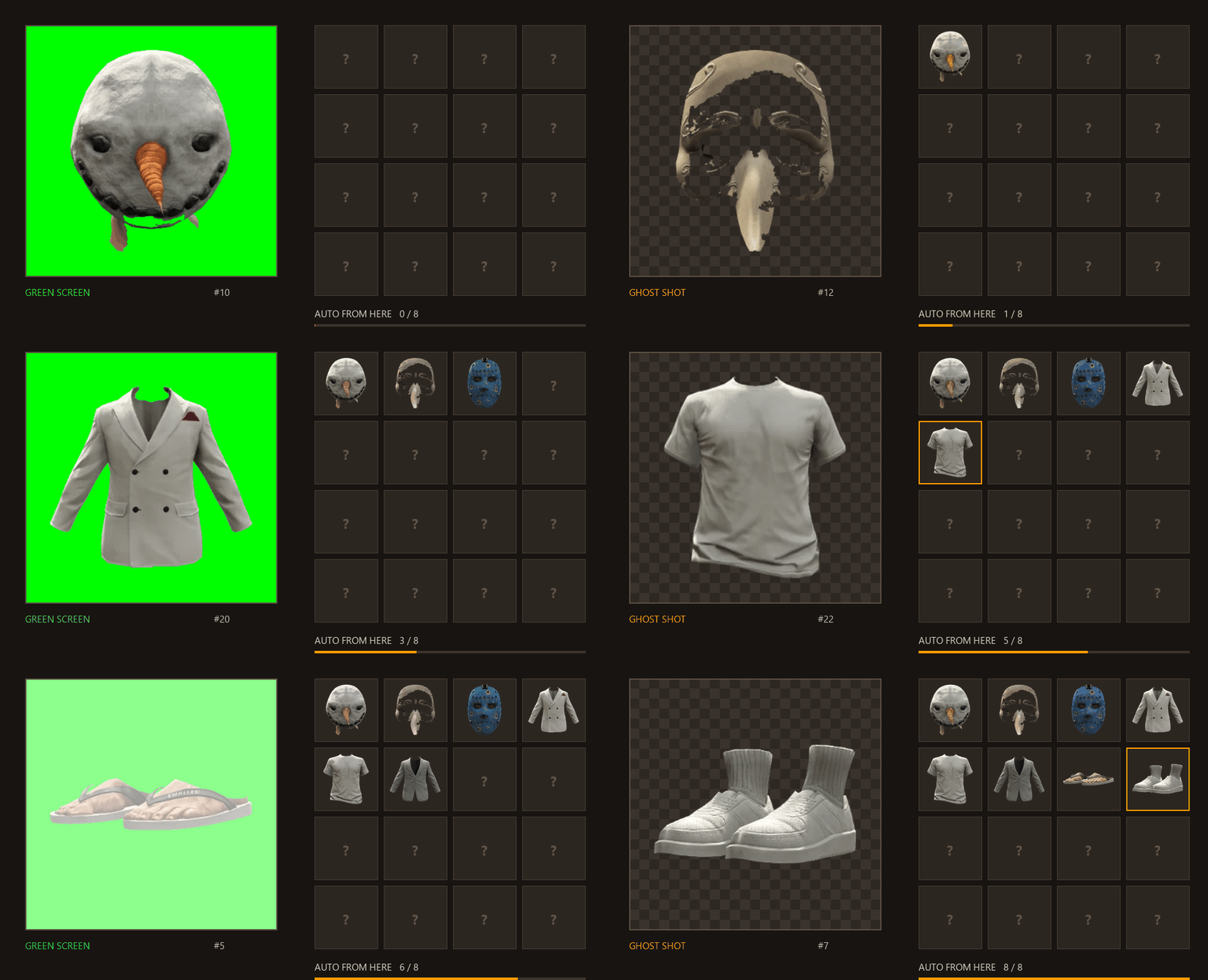
The Capture panel photographs every clothing item, prop, hair style, beard and tattoo on a green screen, removes the background and stores one image per item. Those images are the tiles players see in the editor and the shop. It is also where you give items a name and a price.
Access
-
Turn it on
Config.Koja.Capture.Enabled = trueandscreenshot-basicstarted. If the resource has another name, set it inConfig.Koja.Capture.ScreenshotResource. -
Be an admin
You need the ace inConfig.Koja.Capture.AdminGroup(defaultgroup.admin) or a framework group fromConfig.Koja.Capture.FrameworkGroups:Every capture callback checks the permission again on the server.server.cfgadd_principal identifier.license:YOUR_LICENSE group.admin add_ace resource.illenium-appearance command.add_ace allow -
Open it
Open the editor (/pedmenu, or any shop) and click Admin Panel in the top toolbar. The button appears only for admins. Capture needs a freemode ped (male or female) or a ped fromConfig.Koja.Capture.Models.
Choose where images are stored
On the first run a dialog asks where to store the images. Decide later is allowed.
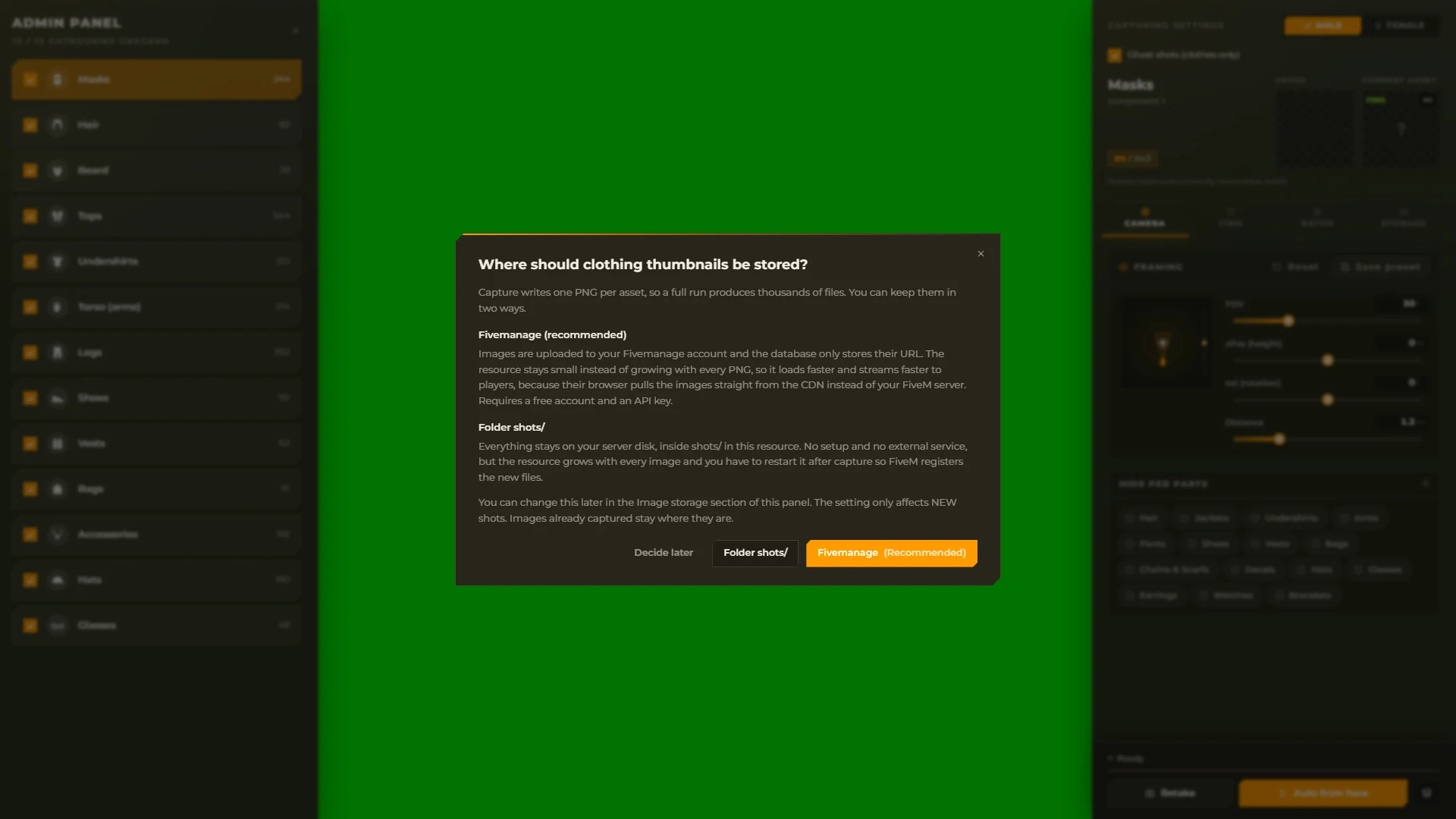
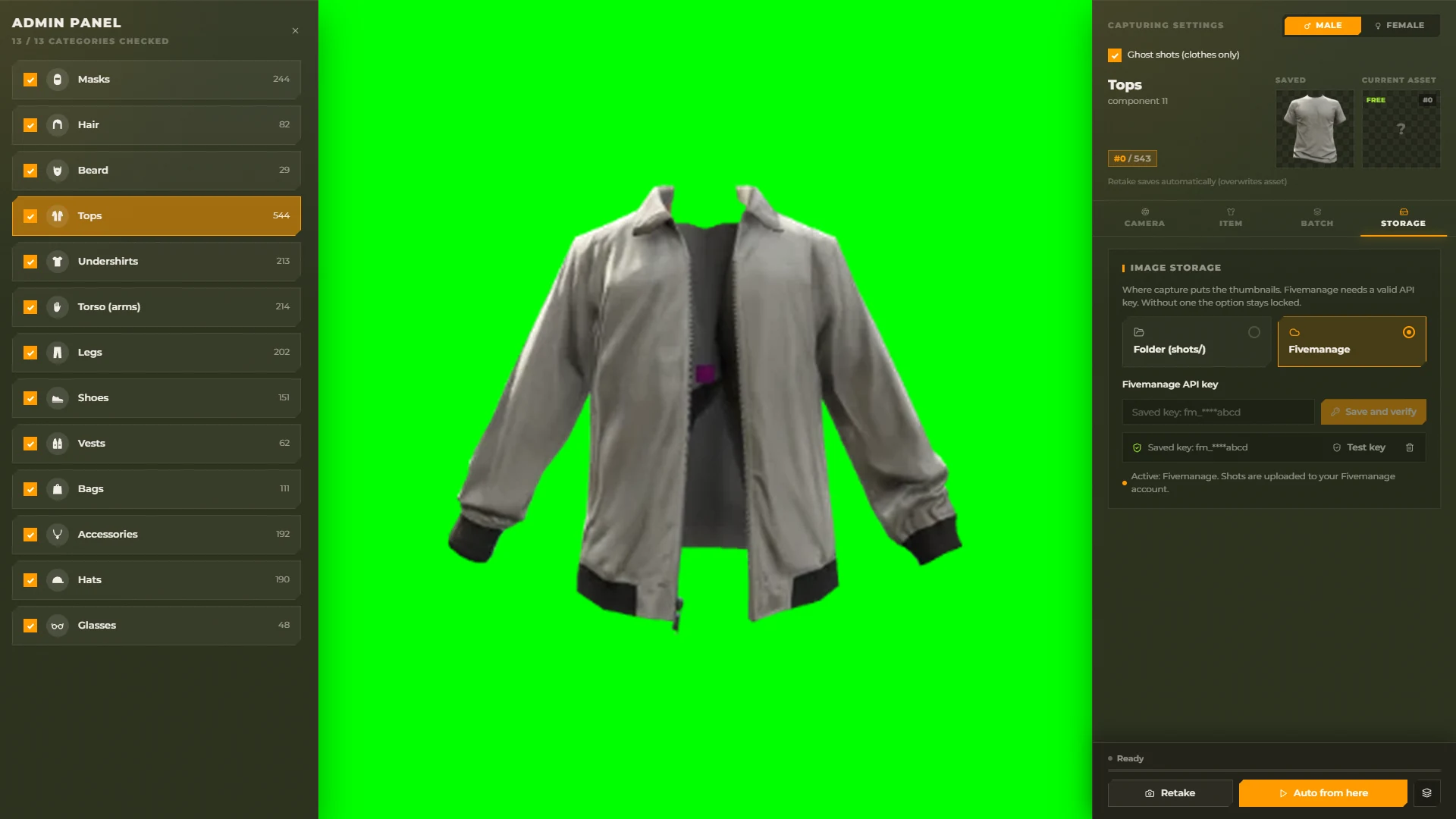
You can change it any time on the Storage tab; the setting only affects new shots — images already captured stay where they are.
Folder shots/ | Fivemanage (recommended) | |
|---|---|---|
| Where | shots/<gender>/<category>/<drawable>[_<texture>].webp inside the resource | Your Fivemanage account. The database stores only the URL |
| Setup | None | A free account and an API key |
| After capturing | Restart the resource so FiveM registers the new files | Nothing, images show at once |
| Size | The resource grows with every image | The resource stays small; players load images from the CDN |
Setting up Fivemanage
-
Create a key
Create a free account at fivemanage.com, open the Media product and create an API key with upload access. -
Save it
Paste it into Fivemanage API key and press Save and verify. The key is checked with a test upload, saved in the database and shown masked. -
Manage it
Test key checks it again. Remove key deletes it and switches storage back to the folder.
The server must be able to reach api.fivemanage.com.
The panel
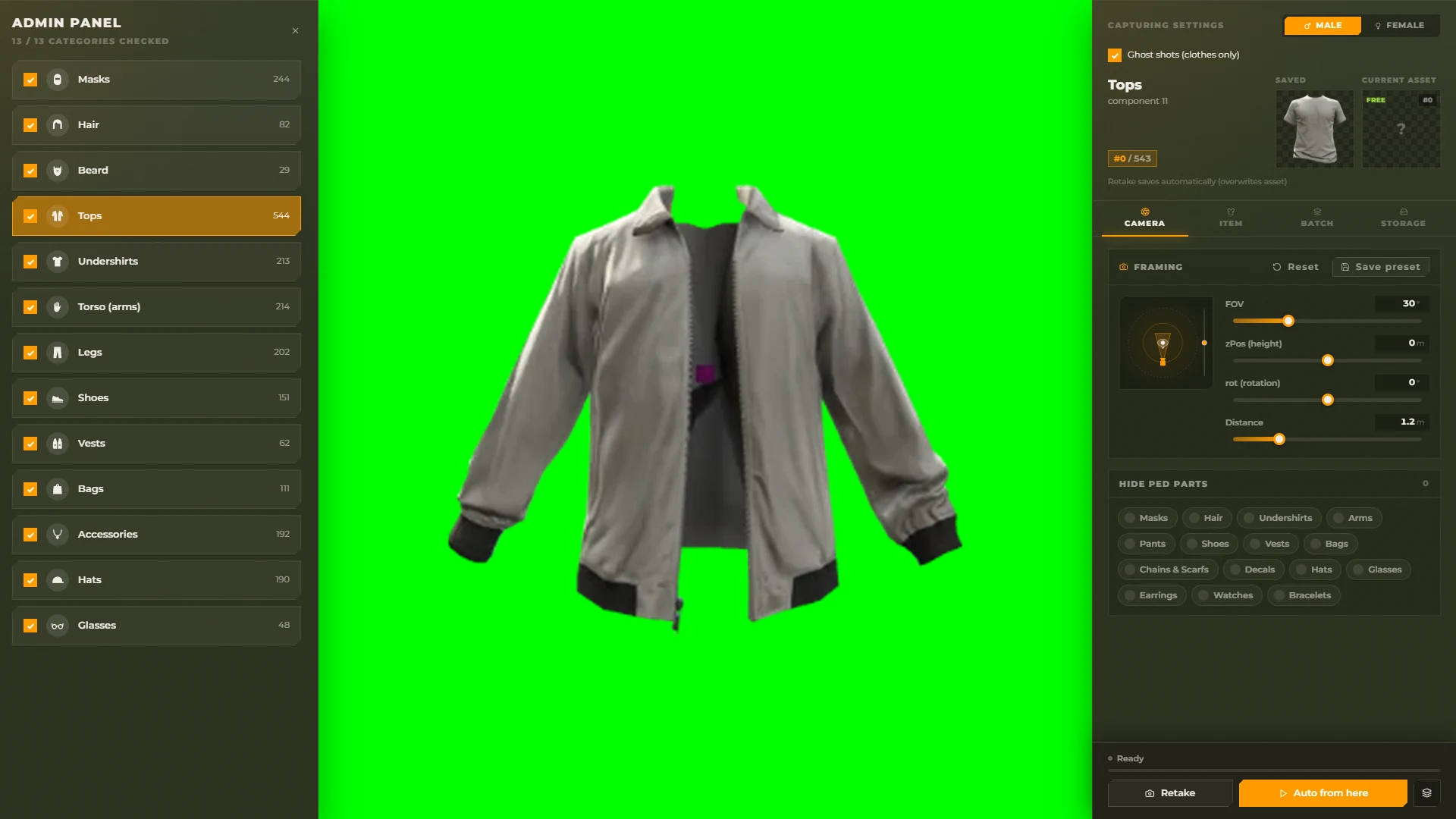
The panel has four tabs: Camera, Item, Batch and Storage. Pick the gender (Male / Female), the ped (Select ped) and the category on the left; browse items with the asset and texture steppers. The preview shows the Saved image next to the New shot.
Camera
- FOV, zPos (height), rot (rotation) and Distance move the camera. The preview is live.
- Hide ped parts: parts hidden while shooting this category (for example hats when shooting masks).
- Save preset keeps the camera and the hide list for this category and gender. Reset goes back to the defaults.
- Ghost shots (clothes only): every item is shot twice, dressed and with the slot empty, and only the pixels that changed are kept — no body, head or hands in the image. Hair and beard are shot with the head.
Item
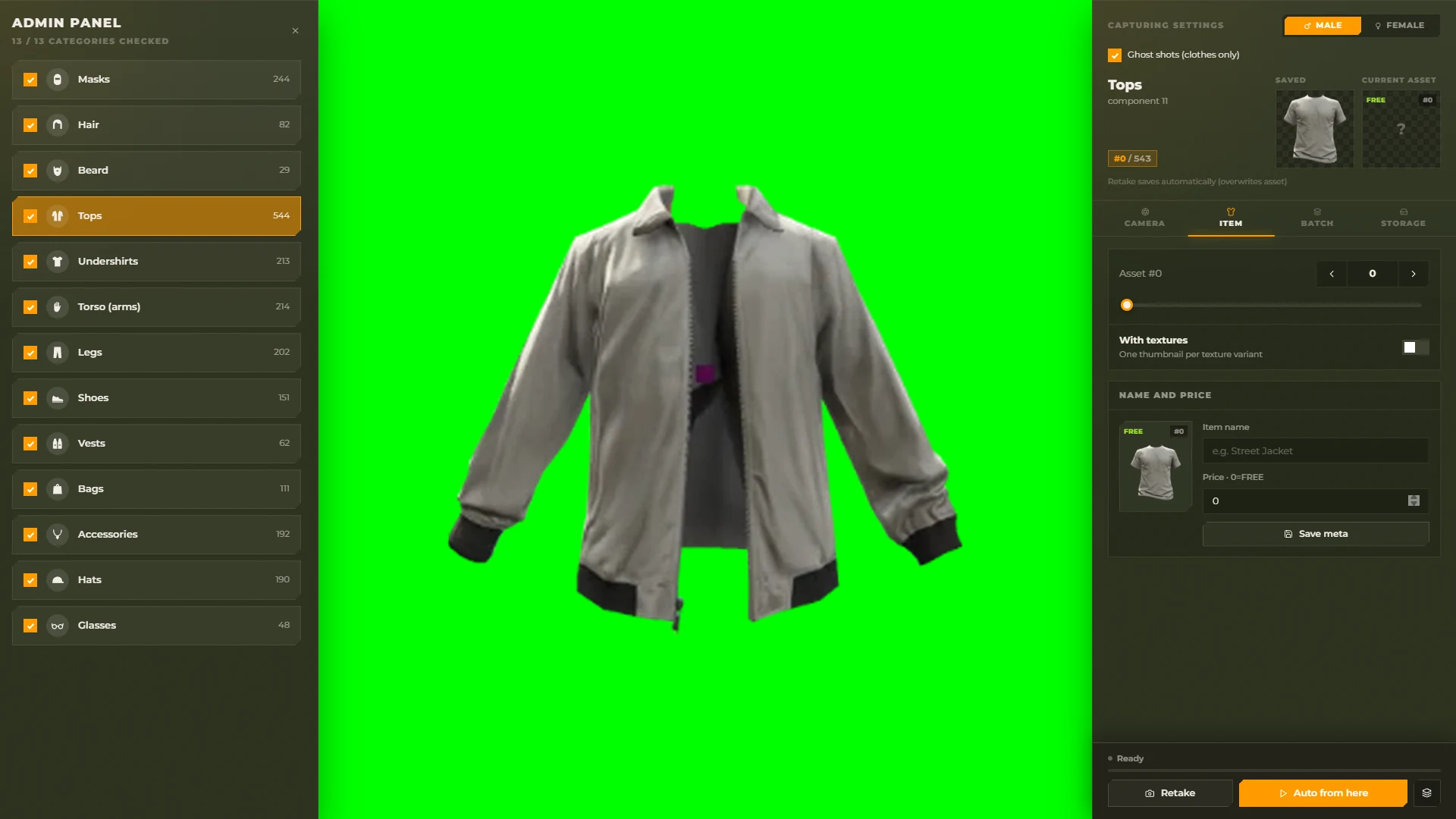
- Retake shoots the current item and overwrites its image at once.
- Name and price: the name shown on the tile and the price (
0= FREE). Save meta stores them in the database; the menu and the shop update immediately. - With textures: one image per texture variant (
4_0,4_1, ...) instead of one per drawable. The editor then shows a tile per variant. A dialog asks first, because capture time and disk use multiply by the number of textures. Turning it off goes back to one image per drawable; the texture shots stay on disk. - Hair look: hair colour, highlight and beard density, so hair and beard shots look right.
Batch
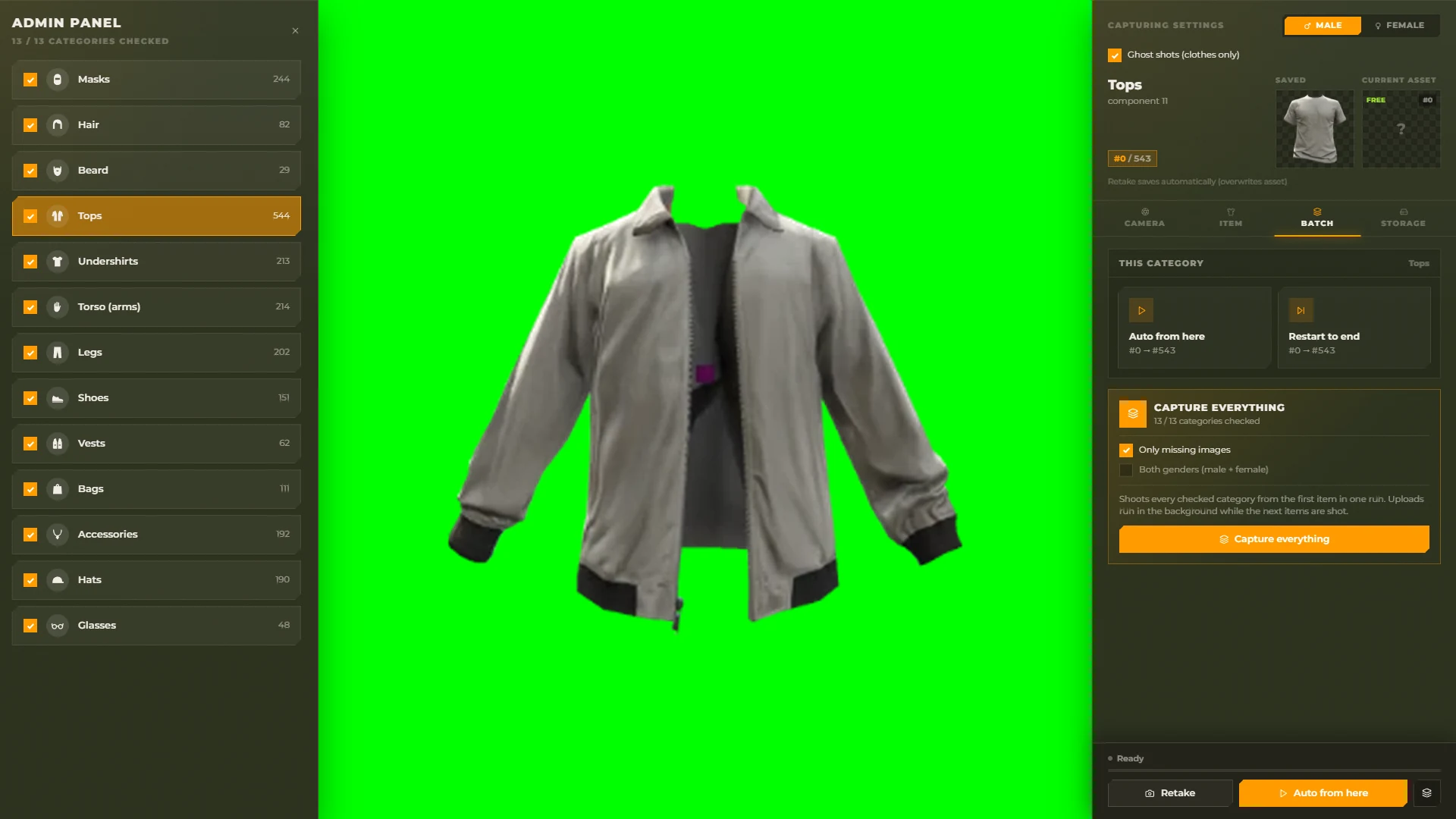
| Button | What it does |
|---|---|
| Auto from here | Shoots every item from the current one to the end of the category |
| Restart to end | Starts again from the first item |
| Stop | Finishes the current item, then stops |
| Capture everything | Shoots every ticked category from the first item in one run. Uploads run in the background while the next items are shot |
| Only missing images | Skips items that already have an image |
| Both genders | Runs for male and female |
Identical images in a row (duplicates) are skipped.
Progress (current / total) is shown while it runs.
Capturing tattoos
The category list has a Tattoos group with one category per tattoo zone: torso, head, left / right arm, left / right leg, and any custom zone in Config.Tattoos.
Hair fades are not captured. The group checkbox ticks every zone at once.
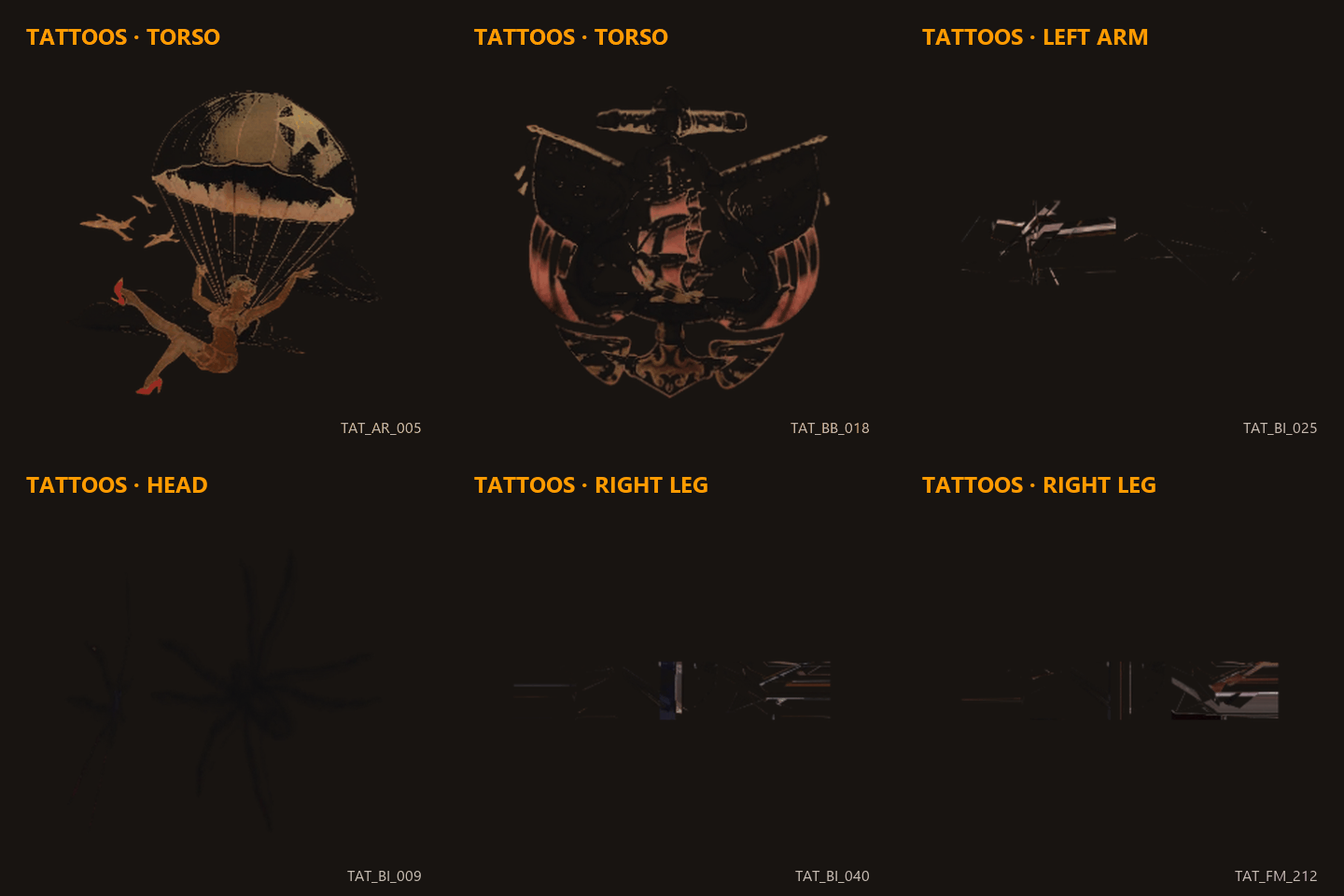
- Every tattoo is shot on a naked, bald body (
Config.Koja.TattooCapture.Naked,BaldHead) with a mid skin tone (SkinTone), with only that one tattoo on. - Each zone is shot from several views and the views are put side by side in one image: torso front + back, head from 4 sides, arm outer side + front, leg front + side + back. Change them with
Config.Koja.TattooCapture.Views. - With
InkOnly = truethe images show only the ink, without the body. - The camera sliders and Save preset work as for clothes; the rotation is added to every view.
- Retake, Auto from here, Capture everything, Only missing images and Both genders include the ticked tattoo zones.
- Files:
shots/<gender>/tattoo_<zone>/<tattoo name>.webp(the name is reduced toA-Z a-z 0-9 _ -), or Fivemanage. - Tattoo name sets the name shown on the tile. Tattoo prices still come from
Config.TattooCost(orcostinshared/tattoos.lua) whenConfig.ChargePerTattoois on.
The player's own skin, clothes and tattoos come back when you leave the panel.
Tips for clean shots
- Images blurry or half loaded: raise
Config.Koja.Capture.SettleMsandTextureSettleMs. - Body still visible in ghost shots: raise
Ghost.Thresholda little, or setGhost.Debug = trueto save the raw frames tocapture_debug/and look at them. Turn it off afterwards. - A perfect ghost shot without any cut-out: add a freemode clone with an invisible body to
Config.Koja.Capture.Models.