
Ped Library
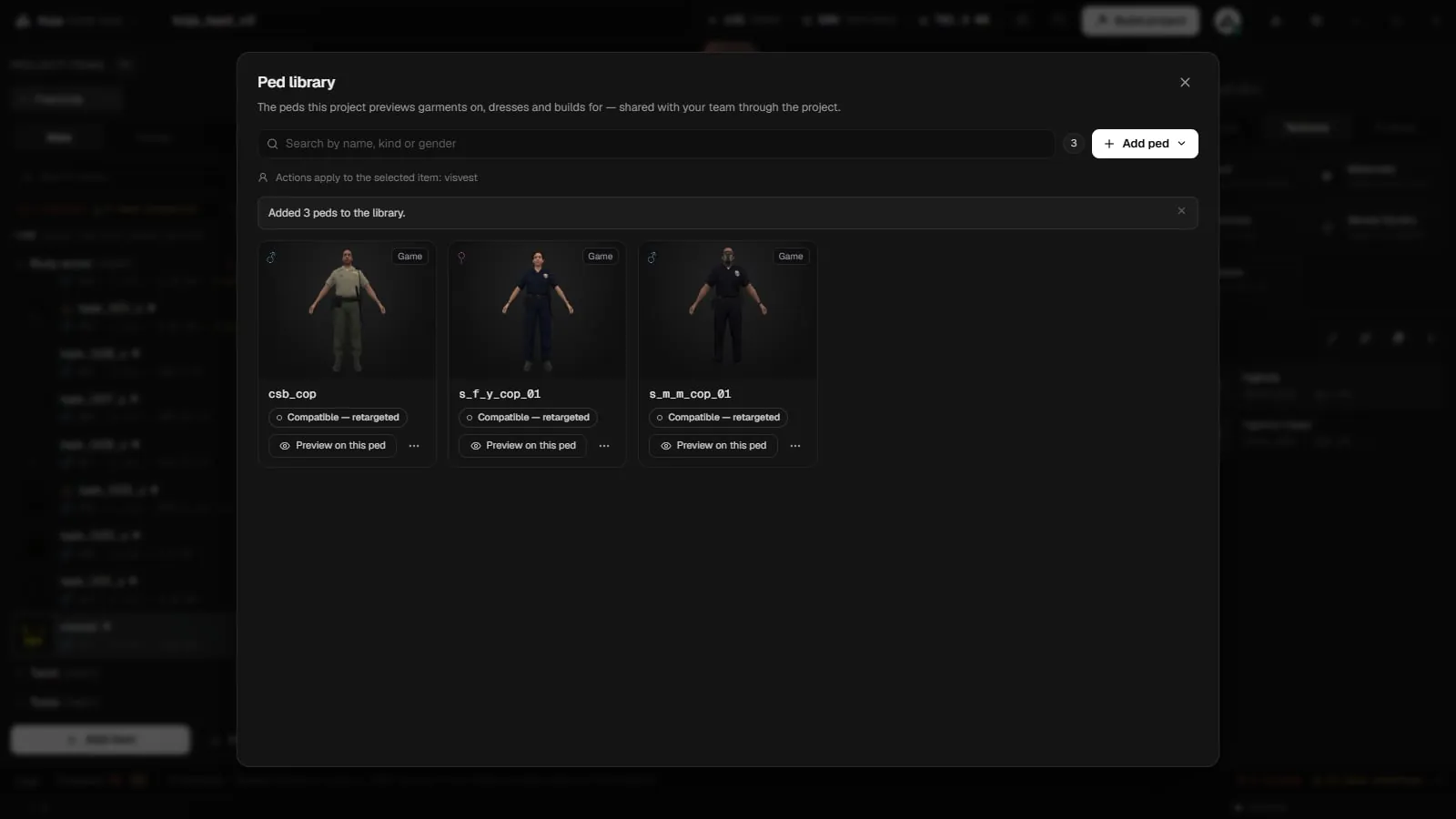
New in 2.0.8. The Ped Library is the list of peds a project works with: peds from your GTA V install, add-on peds from FiveM resources, and peds you made in the Ped Creator. From the library you can preview a garment on any of them, save a ped as a body preset, dress it in an outfit, and build clothing made for that ped.
Opening the library
Click the Ped library button (the people icon) in the top bar. The library window opens with every ped in the project as a card. The + at the end of the item list's ped tabs opens it too.
The search box (Search by name, kind or gender) filters the cards. A line at the top names the item selected in the main window: the card actions that use an item apply to that one.
Adding peds
Click Add ped and choose a source:
| Source | What it adds |
|---|---|
| From the game… | Peds from your GTA V install. Opens a picker with search and filters. |
| From a resource folder… | The ped or peds in a FiveM ped resource folder. |
| From a resource .zip… | The same, from a .zip. |
| From a 3D model (Ped Creator)… | Opens the Ped Creator to make a new ped from a model. |
| Saved in the Ped Creator | Peds already saved in this project's Ped Creator that are not in the library yet. |
Peds from the game
Add peds from the game lists the peds in your install. Search by name (for example skater, cop or f_y_) and filter by group: All, Ambient, Story, Gang, Service, MP and Animals. Each row shows the gender and whether its skeleton is the Freemode skeleton, Compatible or Not compatible. Tick the peds you want and click Add ped (or Add N peds).
Freemode itself is not in the list: it is built in as Freemode male and Freemode female.
The ped cards
Each card shows a picture of the ped, its gender, and a chip for where it came from: Ped Creator, Game, Resource or Folder (this PC). Pictures are drawn in the background and kept on your PC.
Skeleton fit
A badge says whether your freemode garments fit the ped's skeleton:
| Badge | Meaning |
|---|---|
| Freemode skeleton | Same bones as freemode. Garments fit as they are. |
| Compatible — retargeted | Garments are moved onto the ped's bones. Use Fit to ped in the Model Studio for the closest result. |
| Not compatible | Freemode garments cannot go on this ped, for example an animal. The badge names the missing bones. |
Why a ped cannot be used on this PC
A warning chip on the card explains what is wrong:
| Chip | Meaning |
|---|---|
| Escrowed | The ped's files are encrypted by FiveM escrow. They are kept, but cannot be a preview body. |
| Missing | The saved Ped Creator ped behind this entry was renamed or deleted. |
| Not on this PC | The ped points at a folder on another computer. Import it properly to share it. |
| Game files not extracted | A game ped whose game files cannot be read on this PC. |
In the last two cases the preview shows freemode instead.
Card actions
| Action | What it does |
|---|---|
| Preview on this ped | Shows the selected item on this ped in the 3D preview. |
| Dress… | Opens the outfit dresser on this ped. |
| Save as a body preset | Saves the ped as a body preset. Pick it under Appearance › Ped. |
| Build the selected item for this ped | Sets the selected item's Target ped to this ped (asks first). |
| Make clothes for this ped | Gives the ped a tab in the item list, switches the list to it and closes the library. Use it for a game ped that has no clothes yet. |
| Build ped pack… | Opens Build Ped Pack with this ped ticked. |
| Open in Ped Creator | Opens the ped in the Ped Creator. |
| Rename… | Renames a resource ped. The name is the ped's model name in game: lower case, letters, digits and _, up to 32 characters. A game ped's own name is refused. |
| Remove from the library… | Takes the ped out of the project's library. |
Previewing on a library ped
Choose the ped under Appearance → Ped in the 3D preview, use Preview on this ped on its card, or set the item's Preview body field. See Appearance Menu.
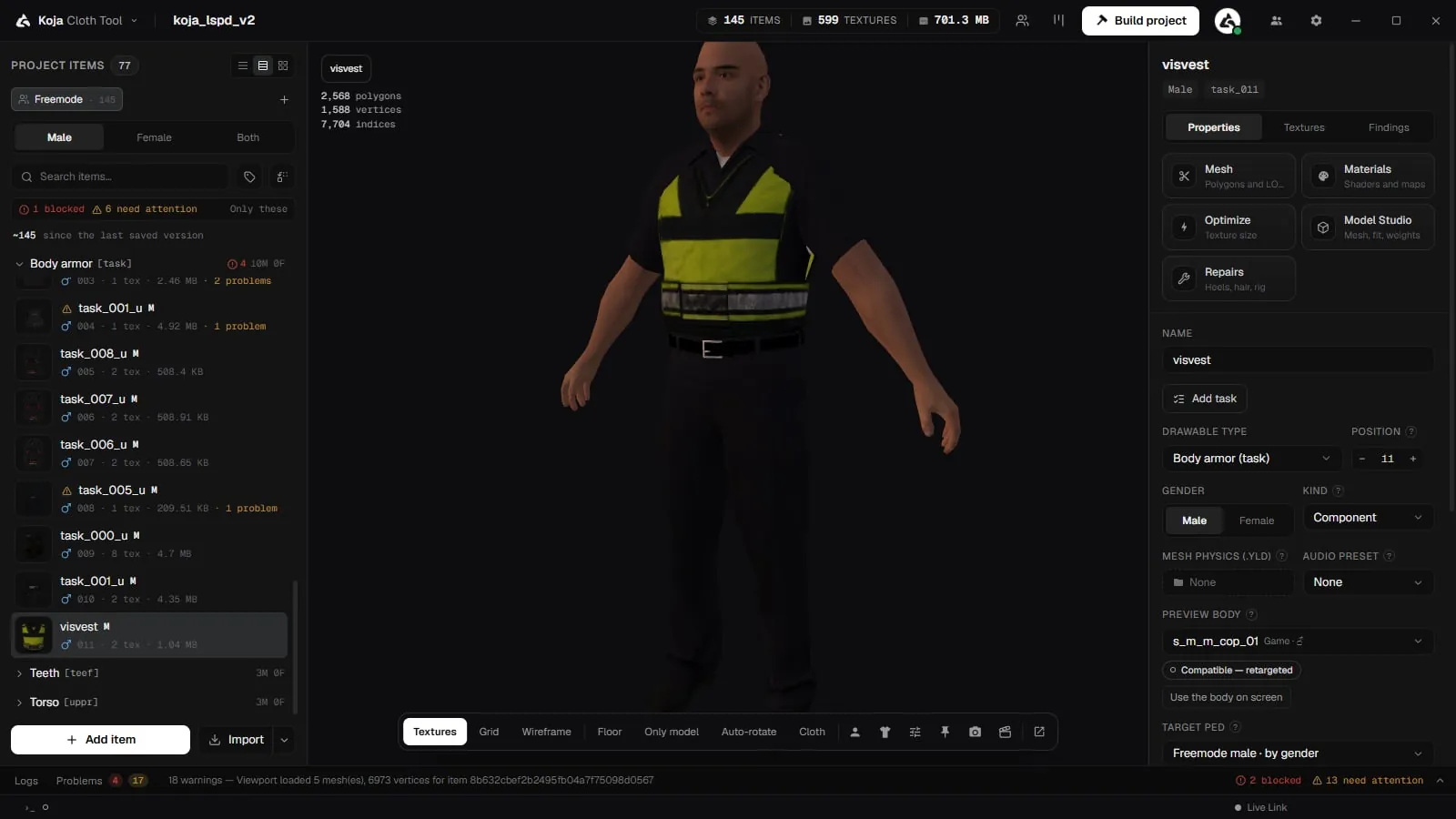
- Most humanoid peds wear freemode garments fitted to their body.
- Animations play on the ped's own skeleton. See Animations.
- A ped missing core bones, such as an animal, is shown with its bare body, and the preview names the bones it is missing.
Outfits
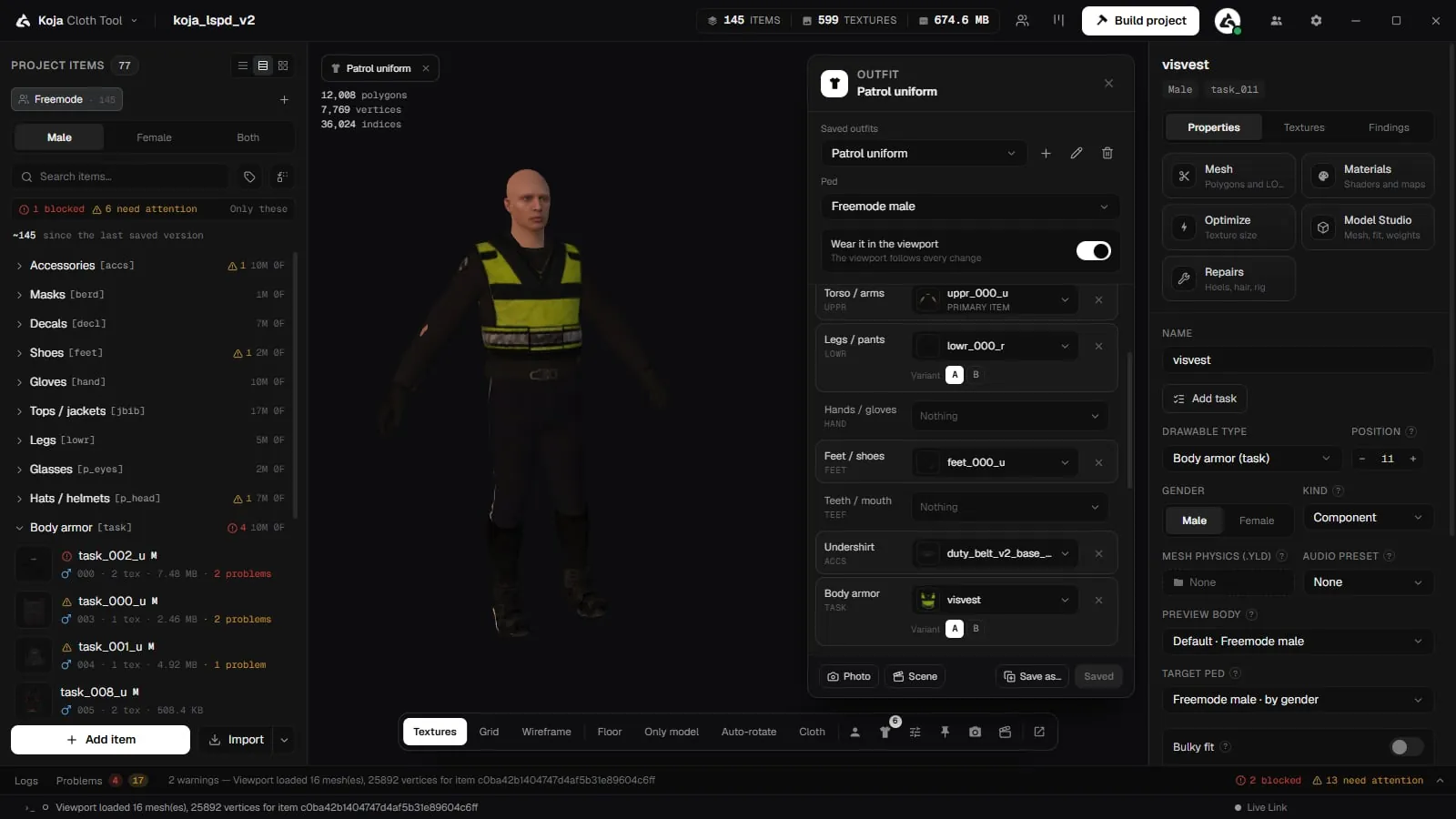
An outfit is a ped dressed slot by slot with garments, texture variants and props, saved in the project for the whole team.
-
Open the dresser
Use Dress… on a ped card, or Appearance → Outfit → Dress the ped… in the 3D preview. -
Pick the ped
Choose the ped at the top of the Outfit panel. Freemode is listed as Built in. -
Dress each slot
Under Clothing and Props, pick an item for each slot, and a Variant for its texture. Search by name if the list is long. Items built for another ped are left out and counted. -
Check it on the stage
With Wear it in the viewport on, the 3D preview follows every change. Under Body you can show or hide the ped's own drawables, and set a Skin tone. -
Save it
Click Save and name the outfit. Save as… keeps the old one and saves a copy.
From an outfit you can:
- Open the Photo Studio on it (Photo).
- Send it to the Scene Creator as a new actor (Scene). The Scene Creator uses the outfit as last saved.
Deleting an item from the project removes it from every outfit. Deleting an outfit removes only the combination; the garments stay.
Clothing for library peds
Ped tabs in the item list
New in 2.0.8. The item list has a tab per ped: Freemode first, then each ped that has clothes, each Ped Creator or resource ped, and any game ped you gave a tab with Make clothes for this ped. A ped's tab shows only the clothes built for it:
- The ped's own drawables are listed read-only in each slot, folded under Ped's own (N).
- Each of your garments shows #N in game: the drawable number it gets on that ped, after the ped's own drawables.
- Importing or adding items on a ped's tab makes them for that ped, with its gender.
- Drag items onto another tab to move them to that ped; hold Ctrl while dropping to copy them instead. Right-click gives the same as Move to ped and Copy to ped.
- A tab with no clothes yet offers Import for ped, Add item, Fit a freemode item… and Build ped only….
See Interface.
Target ped
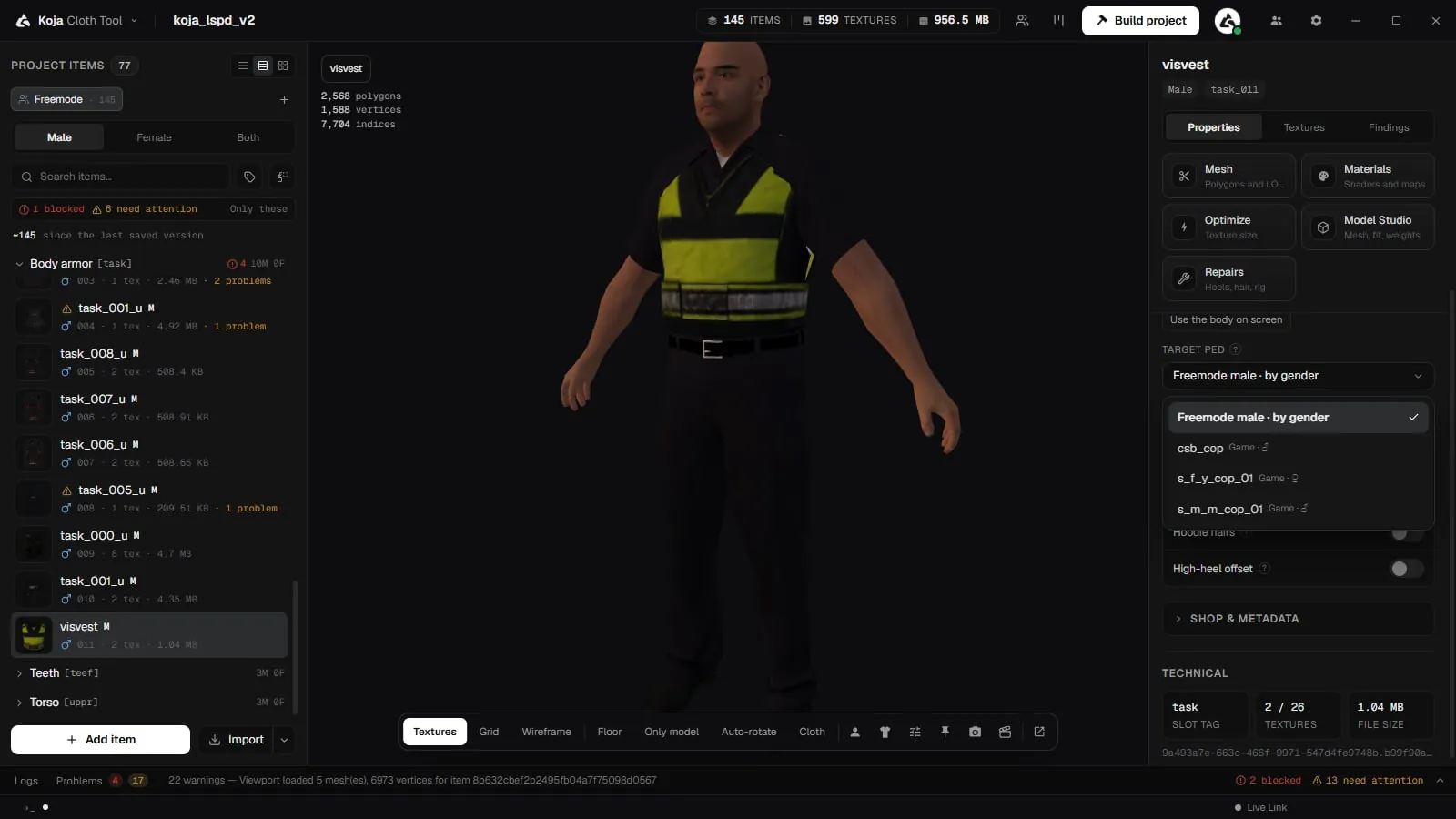
Every item has a Target ped field in its properties: the ped the garment is built for. The default is freemode for the item's gender. Choosing a library ped tells you what follows: the gender it is built as, whether the garment is retargeted or refused, and that it ships inside a streamed resource for that ped. Moving an item to a ped's tab sets the same field.
How it is built
There are two ways to build clothes for library peds:
- With the clothing pack. Items with a library ped as target are listed in the build window under Clothes for peds, one row per ped with its garment count, its resource name and anything that blocks it. Untick a ped to leave its clothes out of that build only.
- As a ped pack. Build Ped Pack builds one or several peds, each with its clothes or on its own, in one resource or one per ped.
Either way:
- Clothes for each ped go into a resource of their own, together with the ped.
- The ped keeps its own drawables. Your garments are numbered after them, and the numbers are written to
INSTALL.txtandclothes_info.json. - Freemode garments are moved onto a ped with a different skeleton during the build.
- A copy made with Fit to ped ships as fitted. A copy fitted for a different ped is left out, with the reason.
- A ped based on a game ped keeps its walk style, voice and behaviour.
- A game ped built on its own needs a model name of its own, so it never replaces the original.
Checks
The build checks flag:
- an item built for a ped that is no longer in the library;
- a ped whose skeleton cannot wear clothes;
- a garment whose gender does not match its target ped;
- a garment that has not been fitted to the ped;
- a ped named like one of the game's own peds. A game ped's own name is refused, so a build cannot replace the original for every player.
See Validation.